The Import Feedback tab is where you upload offline data sets and watch them flow into your insights: offline product reviews, survey responses, interview transcripts, and any other feedback you've collected outside the platform. Jump to section:
Preparing Your File
Supported formats are CSV, XLS, and XLSX, up to 6 GB per file. Use Download Sample Template in the upload dialog so your columns land in the right place.
Two columns are required:
| Column | Rule |
|---|---|
product_name |
Must match an existing Catalog product name exactly. |
review_content |
The feedback text. A row with no text is rejected. |
These columns are optional: product_id,
product_group_name, data_source,
review_date (YYYY-MM-DD),
review_rating (numeric), review_title,
reviewer_id, reviewer_name. Columns that start
with _sf_ or _cf_ carry survey or custom
fields.
reviewer_id matters for Digital Twins.
Rows without a reviewer identifier can still be analyzed, but they
cannot become twins. An audience needs reviewer links on at least 70% of
its rows, and 100 distinct people, before twin work is allowed.
Every row of feedback must be tied to a Product Name that already exists in the Catalog tab, even if the feedback isn't about a specific product. For example, when uploading survey responses, first create a product in the Catalog called "2026 Brand Survey" (or another distinguishable name).
If you leave the data_source column blank, the platform
fills it in automatically using your import's name.
Uploading
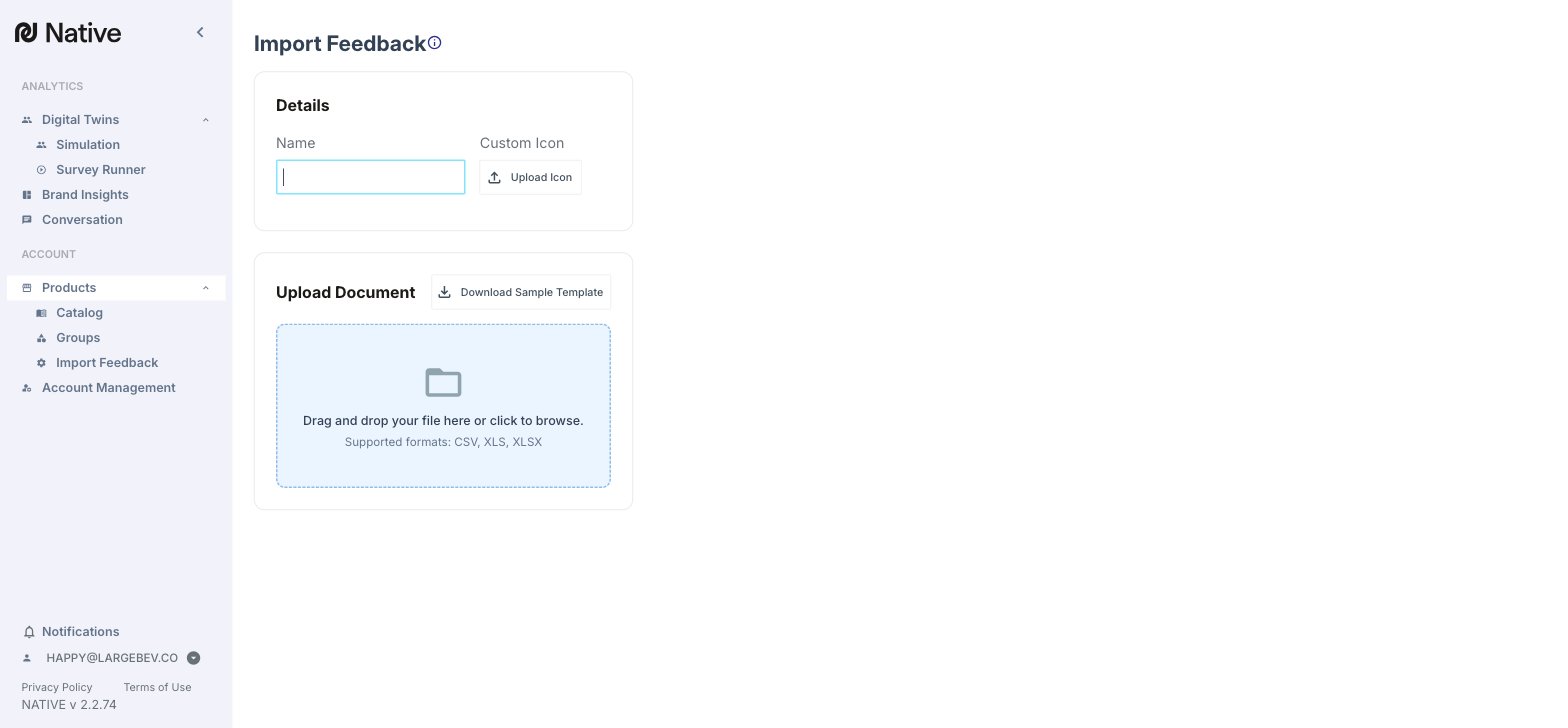
Click + New Feedback, give the import a name (and optionally a custom icon so it's easy to spot in filters), then drag and drop your file or browse for it. Large files are no problem: uploads go directly to secure cloud storage.
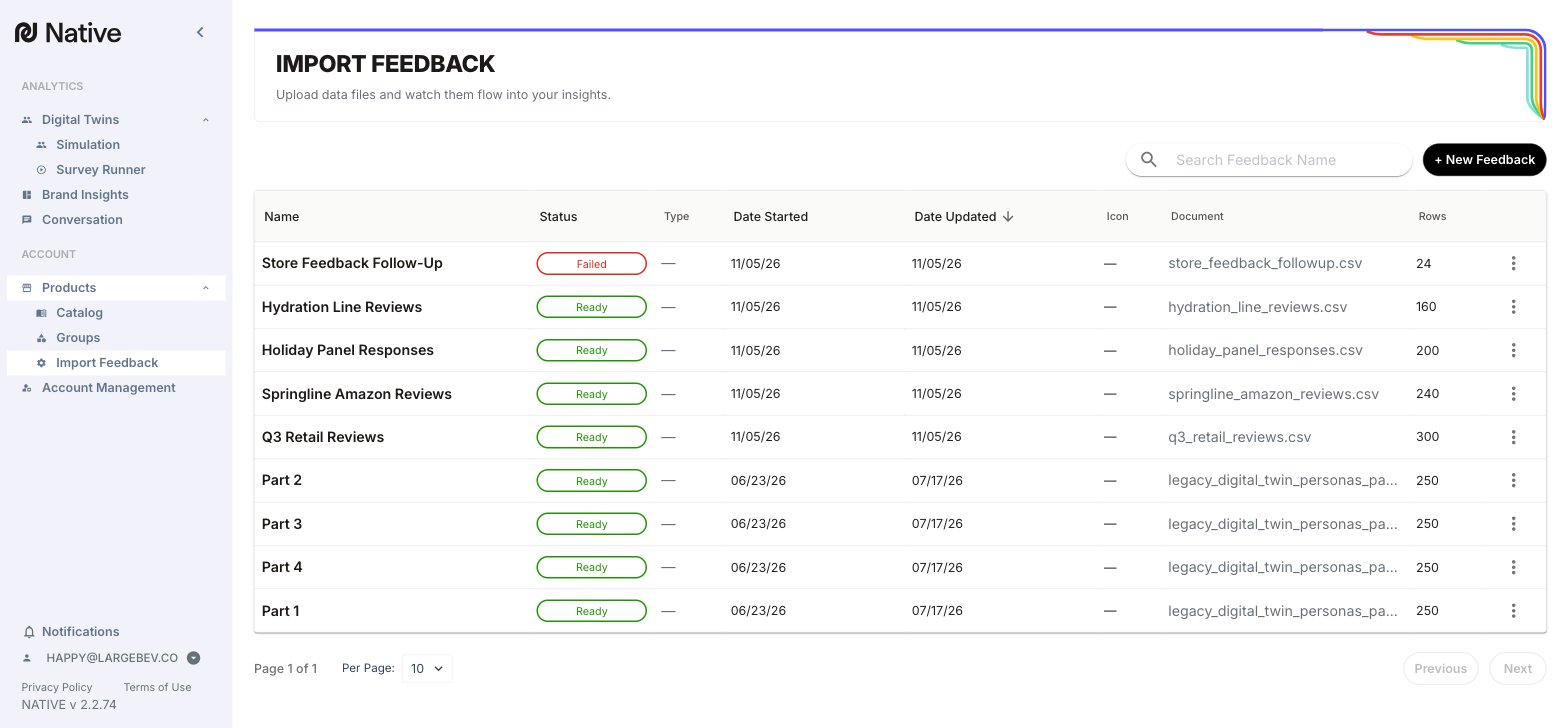
Every import appears in the job list with its status, source document, row count, and dates, so you always know what's pending, loaded, or needs attention.
Fixing Errors In-App
After upload, the platform validates every row and flags problems: a product name that doesn't match the Catalog, an invalid date format, a missing required field. Open the import to see your rows in a spreadsheet-style view with problem cells highlighted and an error list below. Fix the values right in the grid, then hit Re-verify. There's no need to fix your spreadsheet and re-upload.
| Error | Fix |
|---|---|
Required field on review_content |
Add the feedback text, or delete the row. |
Required field on product_name |
Add the product name. |
| Product not found for this company | Match the Catalog name exactly, or create the product first. |
Must be a number on review_rating |
Use a numeric rating. |
Invalid date format on
review_date |
Use YYYY-MM-DD. |
Duplicate reviews are removed automatically before processing.
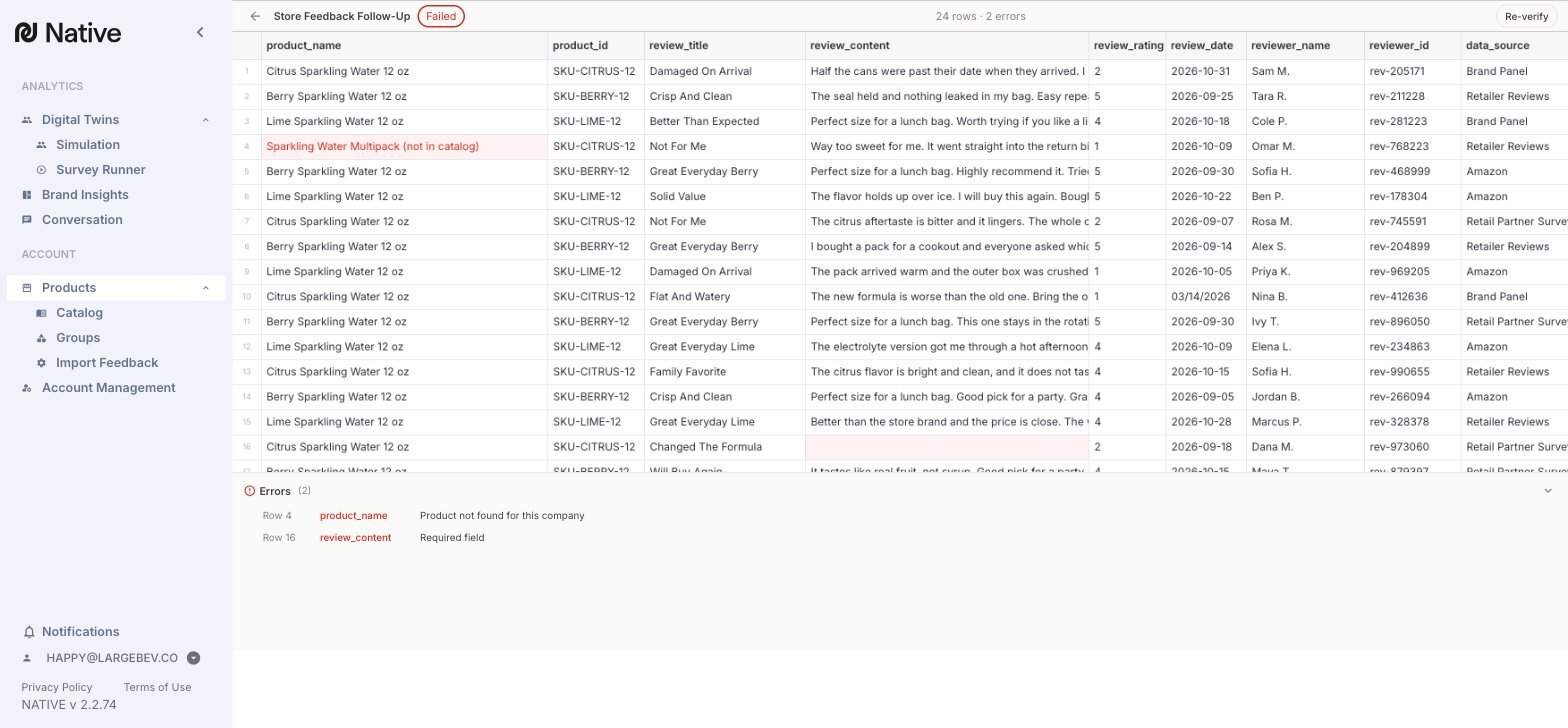
Note: the working view for an import is rebuilt from your uploaded file when you return to it, so you can come back to fix errors at any time.
After the Import
Once your rows pass verification and load, Native AI applies Natural Language Processing to the new feedback right away: results are typically ready in as little as 30 minutes. A very large import takes longer, and twin readiness also waits for reviewer links and processing to finish. (This is different from the Catalog tab's product URLs, which pull third-party reviews from retailers and can take up to 48 hours to begin appearing, since that data has to be scraped rather than read from a file you already have.) The imported feedback then appears in the Conversation and Brand Insights tabs, filterable by its Product Name, and becomes part of the source data available to your Digital Twins and Survey Runner audiences.