Survey Runner (under Digital Twins) turns a questionnaire into a simulation against a real audience. You can upload a document, write questions yourself, or describe the study you want and let Native AI draft it. Survey Runner parses the questions, optimizes each one for Digital Twins, and runs them against an audience you choose. Jump to section:
- Before You Start
- Survey Runs
- Create the Survey
- Optimize Questions and Set Audience
- Configure the Run
- Review Questions and Run
- Run and Monitor
- Results and Reports
- Troubleshooting
Before You Start
You need a saved audience with enough people for twin work. Survey Runner uses the same readiness rules as Digital Twins: the audience needs at least 100 digital twins, 70% of its rows must carry a reviewer link, and processing must be at least 60% complete. If the audience is not ready, creating or starting a run returns asset not ready and names the blocking reason. See Troubleshooting for the fix.
A survey can hold up to 100 questions. Choice questions take 2 to 20 answer options. Three creation modes are available, and all three end at the same question set.
Survey Runs
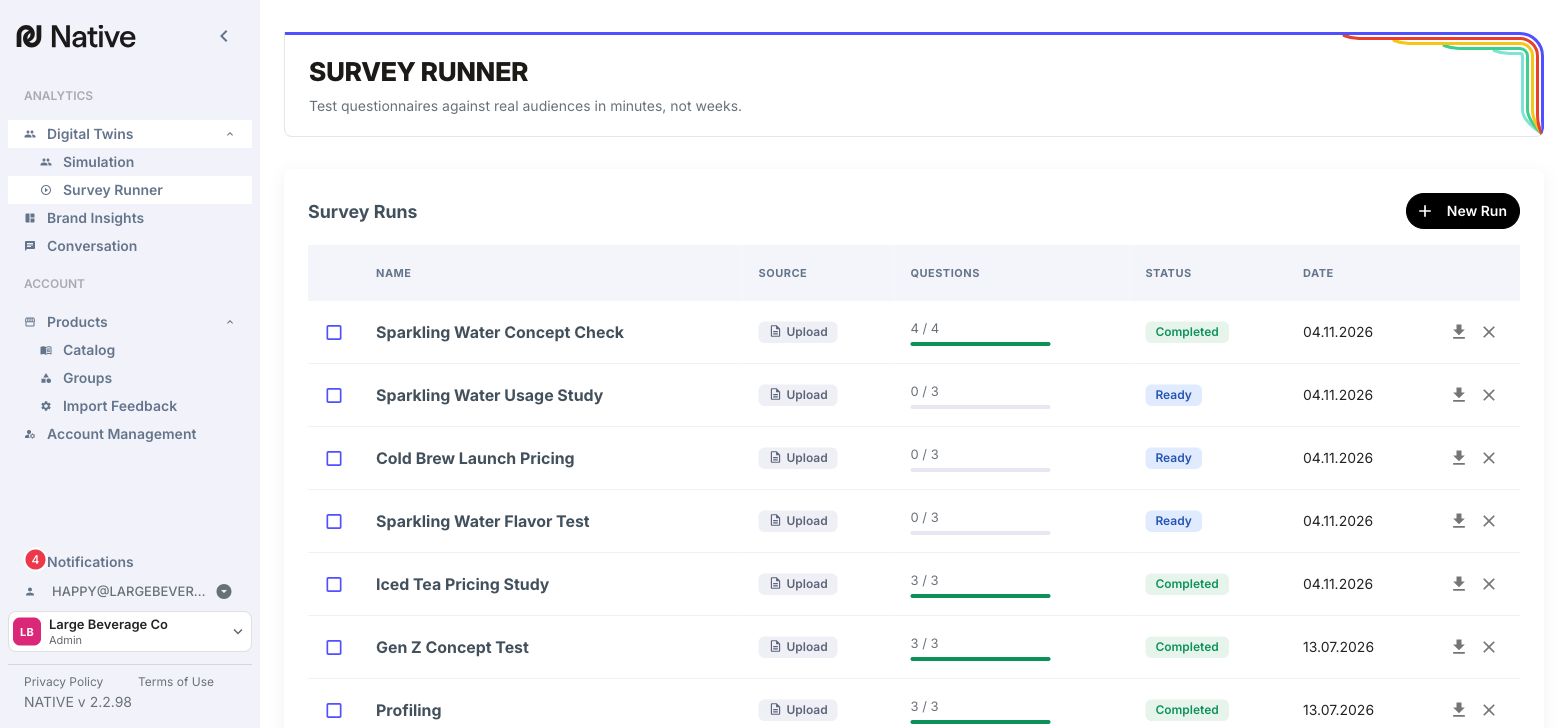
The Survey Runner home lists every run with its source file, question progress, status (Ready, Running, Completed), and date. + New Run starts a new survey, and each row has Download xlsx and Delete run.
Create the Survey
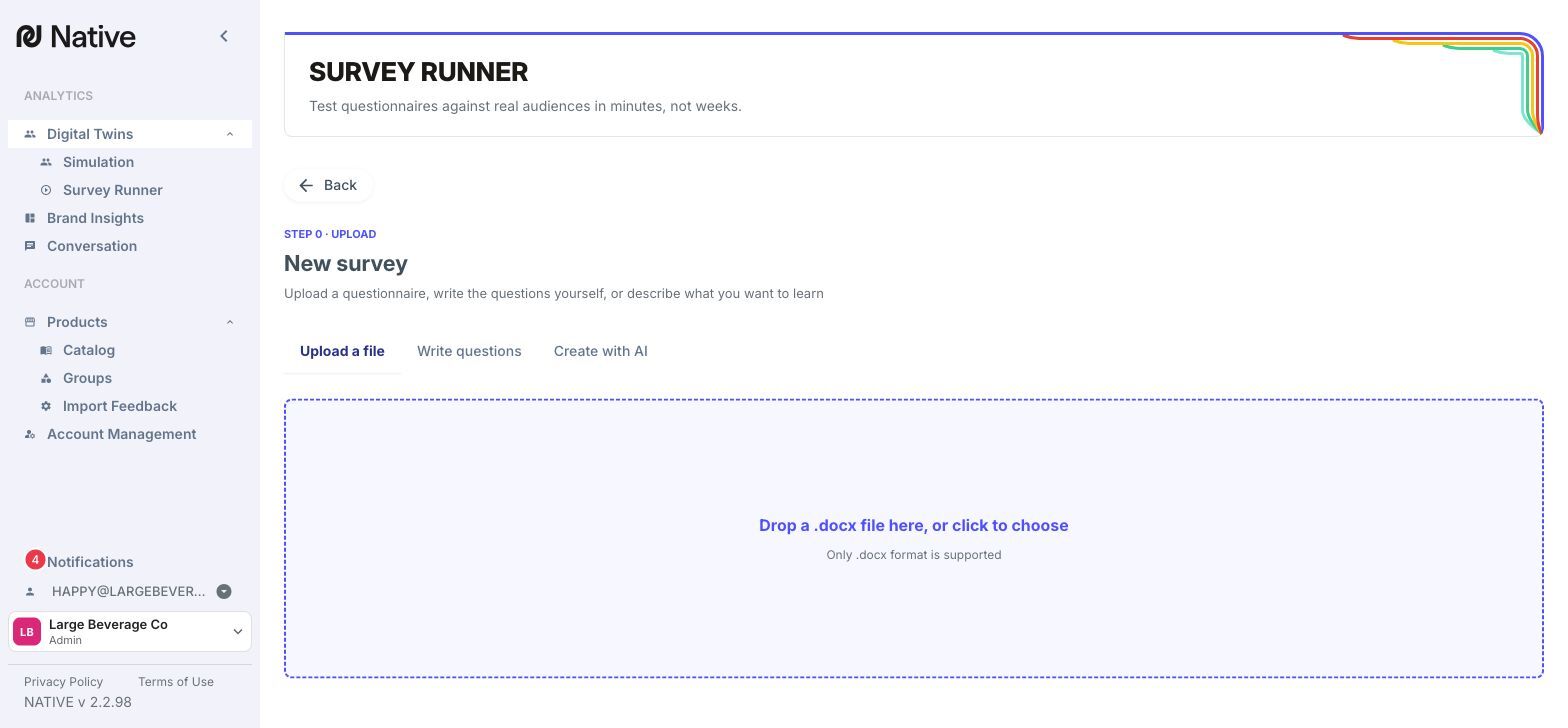
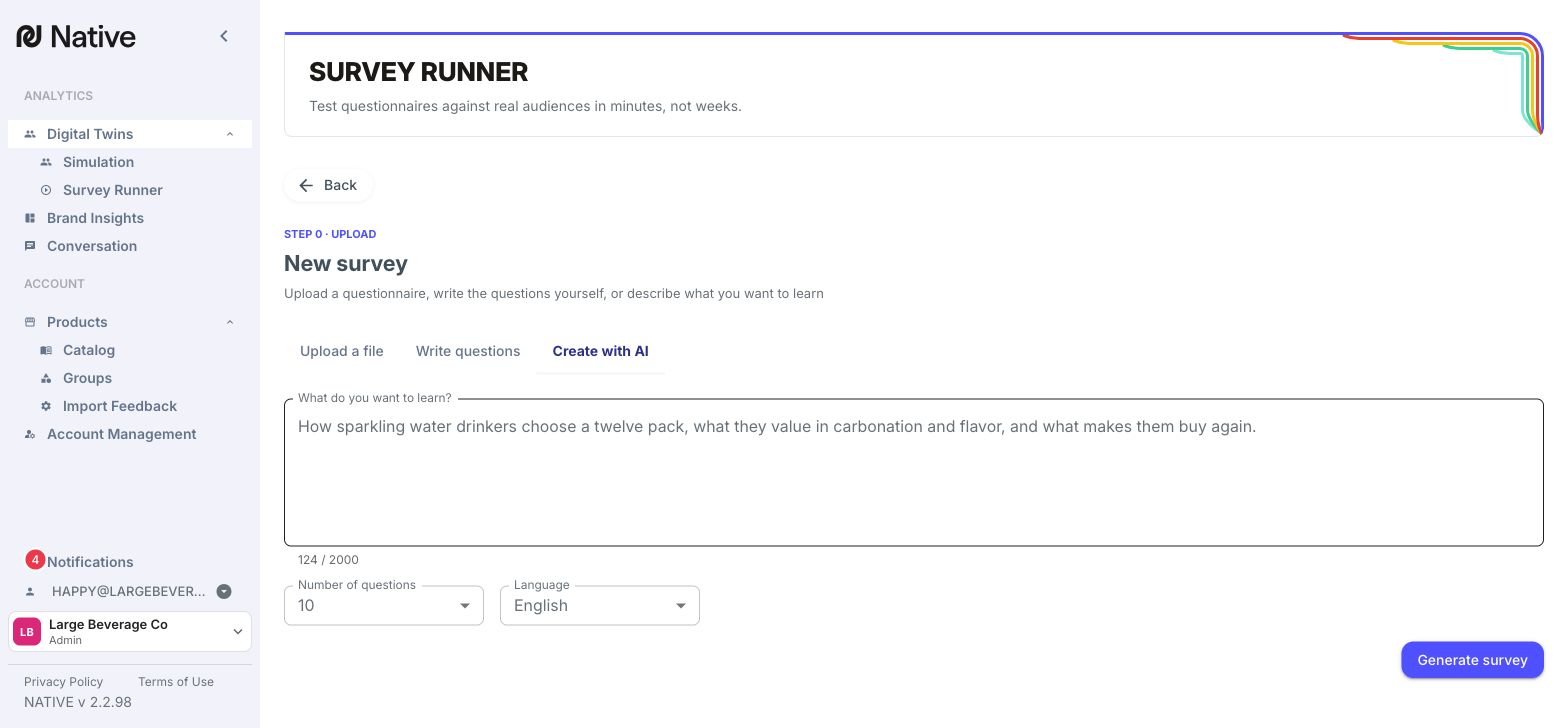
Step 0 · Upload offers three tabs:
- Upload a file reads a Word document (.docx). The document can be in your existing format. Survey Runner extracts the questions and any answer options, then matches any images in the file to questions.
- Write questions starts with an empty card for each question. Pick the type, type the question, and add answer options or scale labels.
- Create with AI needs a short purpose, the number of questions (5, 8, 10, 15, or 20), and a language (English or Japanese). The purpose is limited to 2,000 characters. Review the generated questions before you optimize them.
Every question is one of four types:
| Type | What you provide |
|---|---|
| Single choice | 2 to 20 answer options. |
| Multiple choice | 2 to 20 answer options. Twins can pick more than one. |
| Rating scale | 5, 7, or 10 points, a label for every point, and which end is best (Highest is best or Lowest is best, which sets the Top 2 box direction). |
| Open text | The question only. Answers are free text. |
Optimize Questions and Set Audience
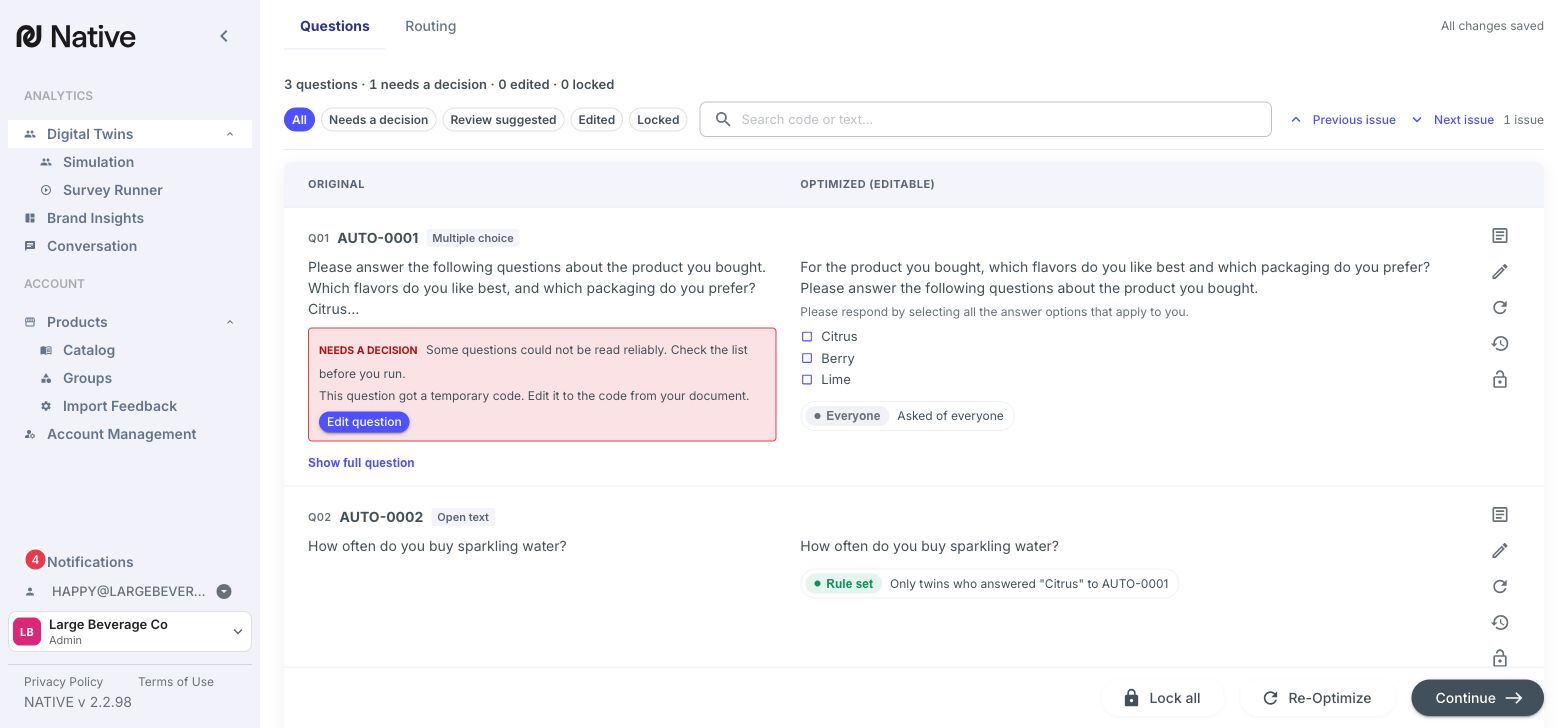
Step 1 · Optimize shows each original question beside the AI-optimized version. Optimization follows the same principles as the Digital Twins question tips: one question per query, concise wording, and clear answer options.
The Who the questions go to panel on this step sets the run's audience and sample:
- Run audience is the saved audience for the whole run.
- Sample size is how many twins answer each question. The minimum is 100. The maximum is the number of reviews available in the audience, capped at 20,000, and the helper text states it. An audience below the minimum cannot host a run.
Set both before you optimize the wording. The run cannot continue without a run audience.
- Edit any optimized question inline. The original stays visible for comparison.
- Lock a question to keep its current wording. Lock all locks the set. An unlocked question can be re-optimized.
- Re-Optimize runs a fresh pass. Version history shows earlier wordings for a question and lets you restore one.
- A warning banner counts the parse problems, for example unclear question boundary or text not linked to a question. Select a warning to jump to the question that caused it, fix the wording or re-link the text, then continue.
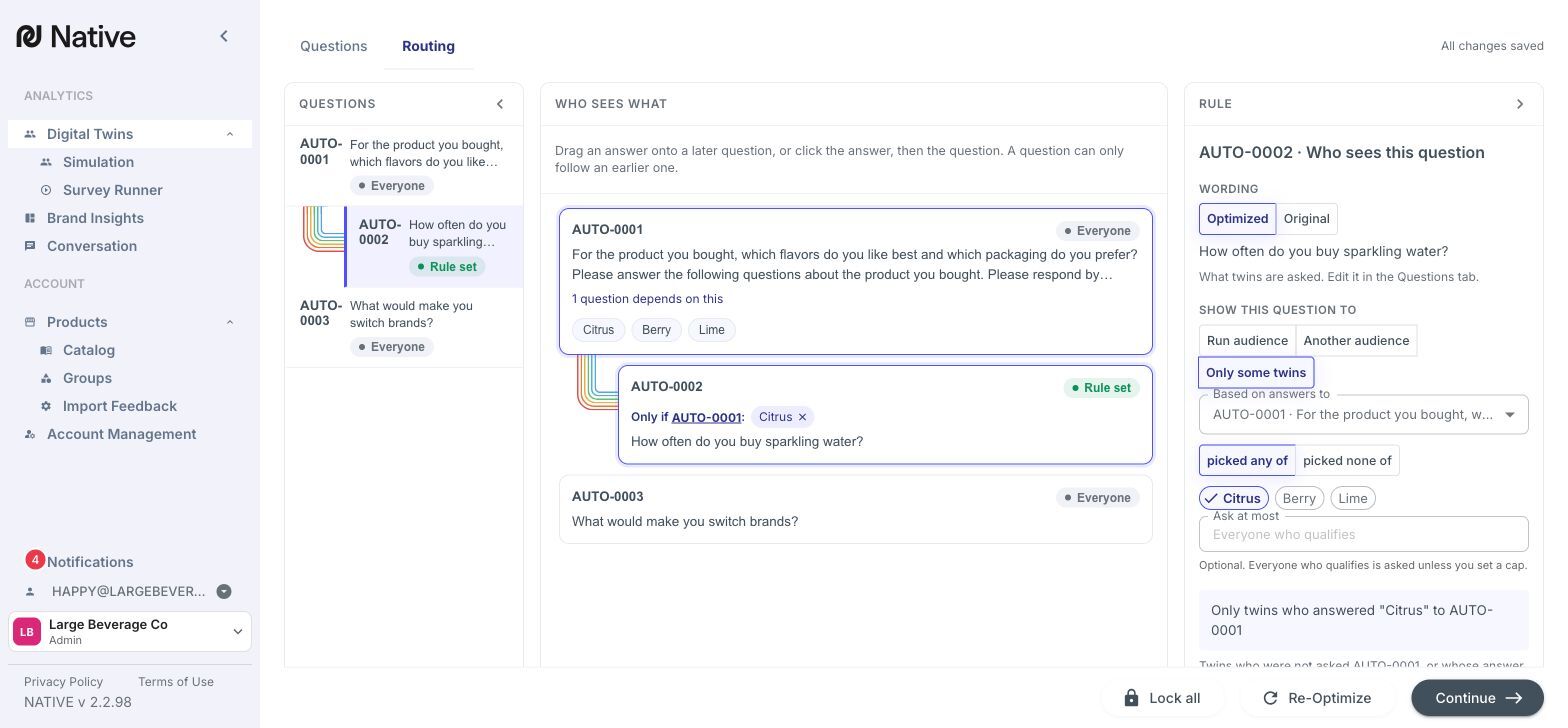
The Routing tab sets who sees a question. Open a question and choose Show this question to:
- Run audience: everyone in the run's audience.
- Another audience: a different saved audience.
- Only some twins: twins who gave a chosen answer to an earlier question. This is how display conditions and follow-up questions work. Pick the earlier question, the answer, and an optional cap on how many are asked.
A question that no one can reach is flagged before you continue.
Configure the Run
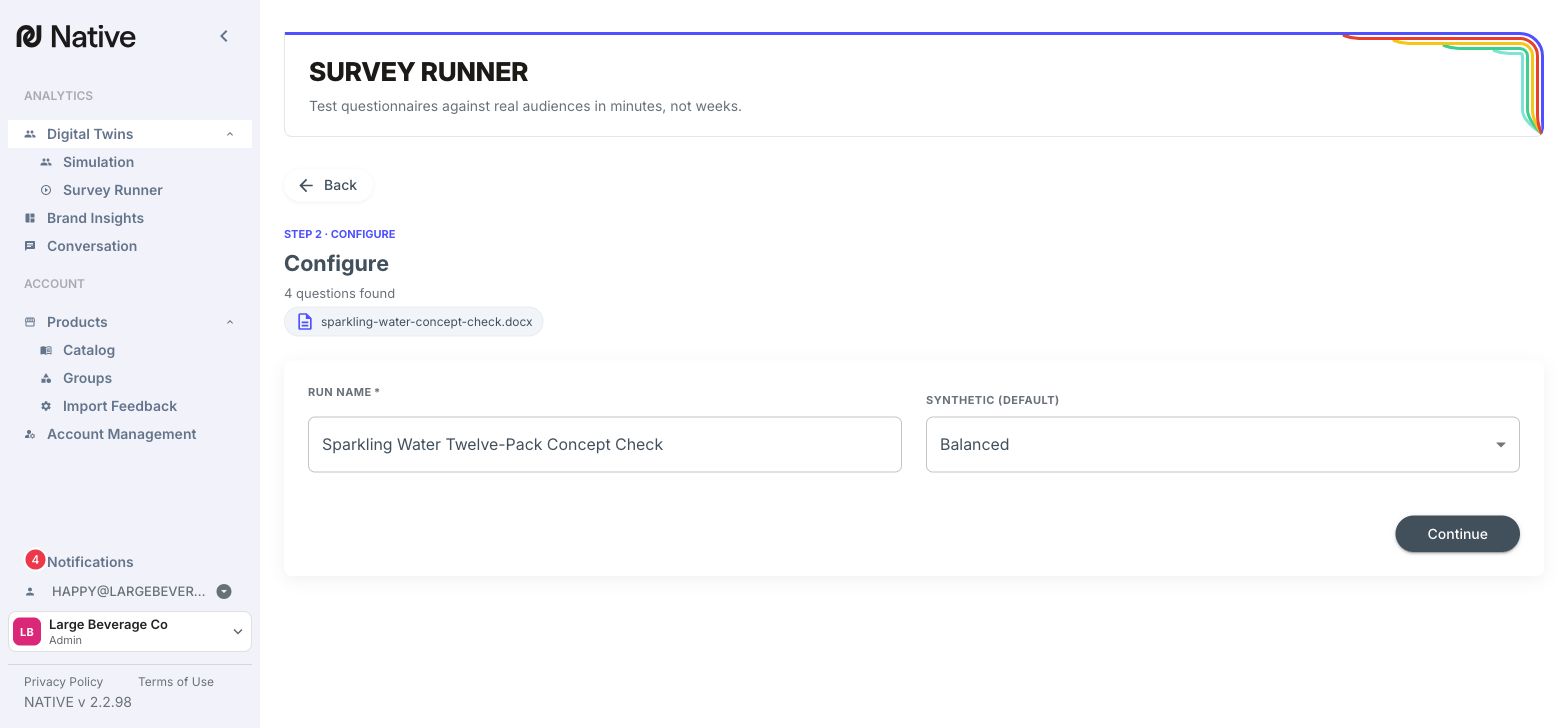
Step 2 · Configure holds two settings: the run name and the default synthetic output (High Fidelity, Balanced, or High Creativity). The audience and sample were set in the Optimize step and carry forward.
Your work is saved as you go. You can leave and resume from the Survey Runs list.
Review Questions and Run
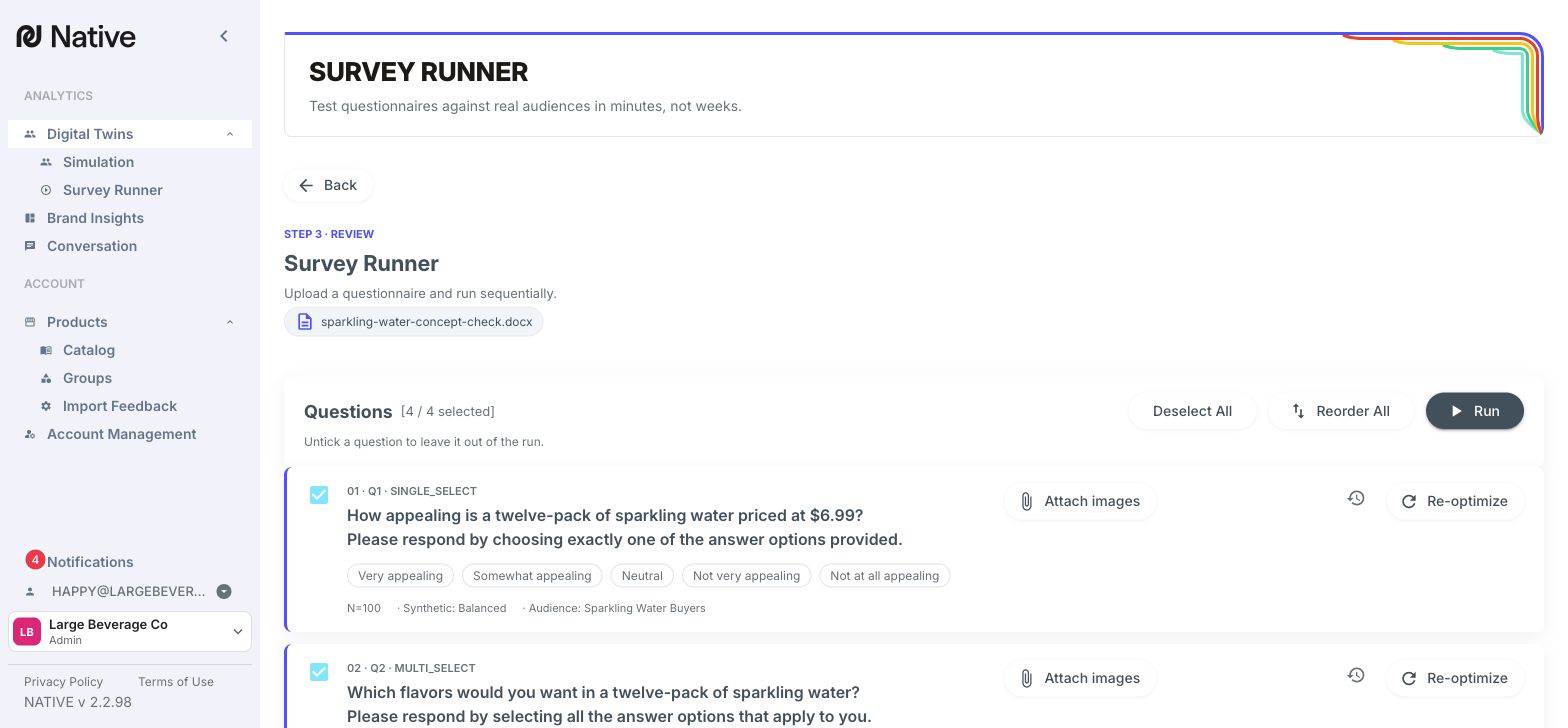
Step 3 · Review shows the final question list. The audience and sample were set in the Optimize step and are shown on each question as N, Synthetic, and Audience.
- Untick a question to leave it out of the run. Deselect All clears the set.
- Reorder All changes the order twins see.
- Attach images adds up to five stimulus images to a question. Each must be PNG or JPG and no larger than 5 MB. A matched image appears with the question when it runs.
- Re-optimize re-runs the optimization for one question.
- Blocking warnings stop the run until they are fixed. Non-blocking warnings are shown but do not stop you.
Select Run to start.
Run and Monitor
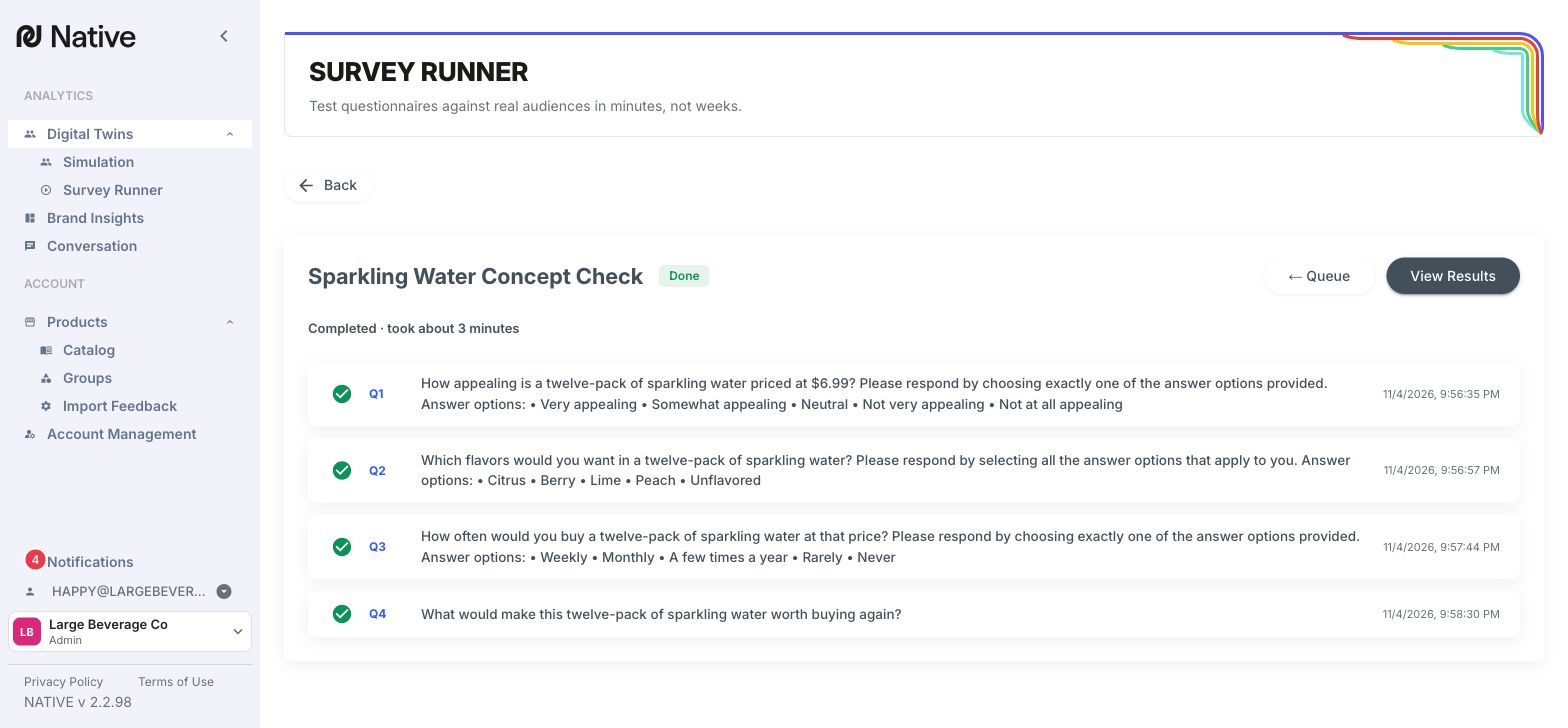
Start the run with Run all pending. Questions run in sequence. The run page shows every question with its status:
- Writing: the question text is being finalized.
- Ready: the question is queued.
- Running: twins are answering.
- Paused: the run is stopped and can resume.
- Completed: answers are in.
- Failed: the question did not finish and can be retried.
You can pause a running survey, resume it, and retry all failed questions. Completed questions keep their results, so a pause or a failure never discards finished work. The run list shows per-question progress and the run status.
Completed survey questions also appear as threads in Digital Twins, filed in a folder named for the survey, so you can ask follow-ups on any survey question.
Results and Reports
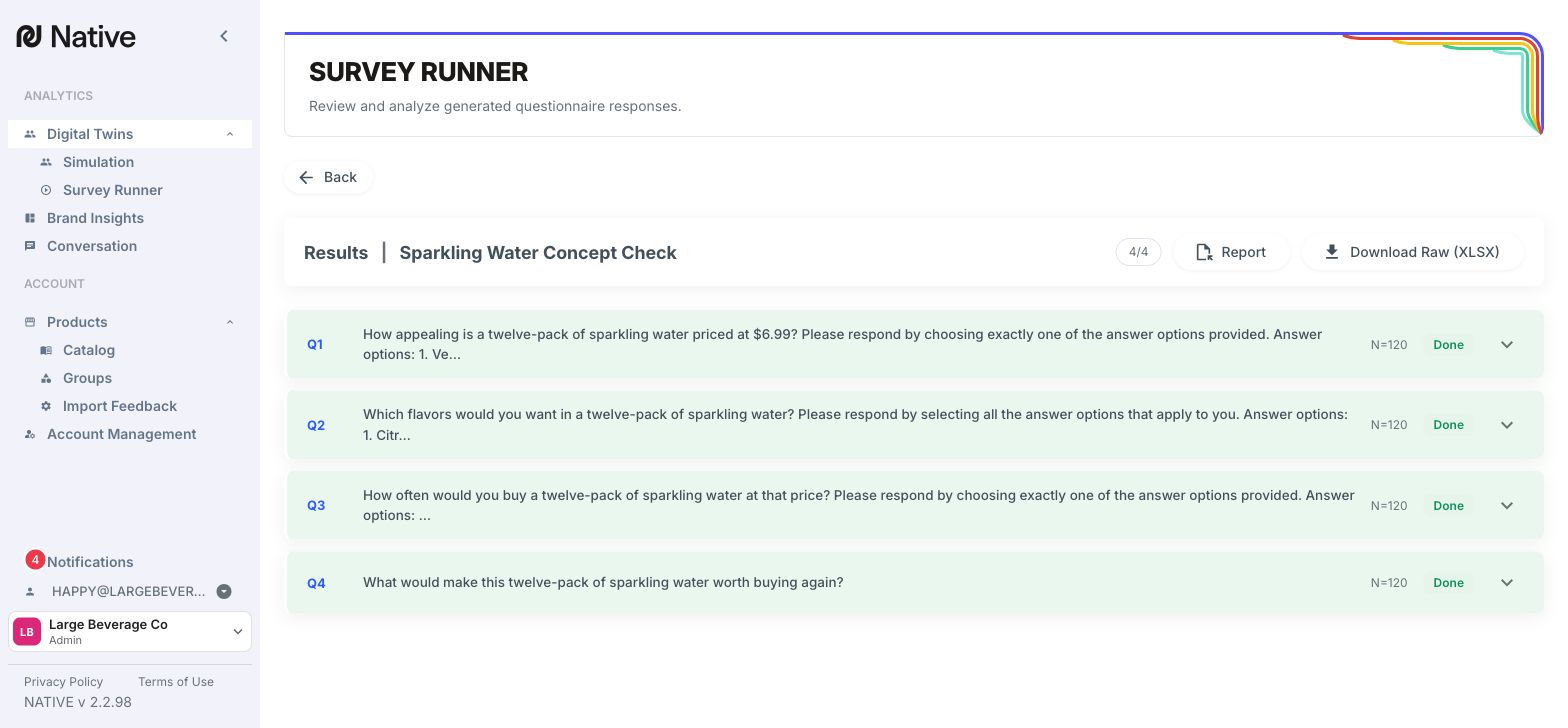
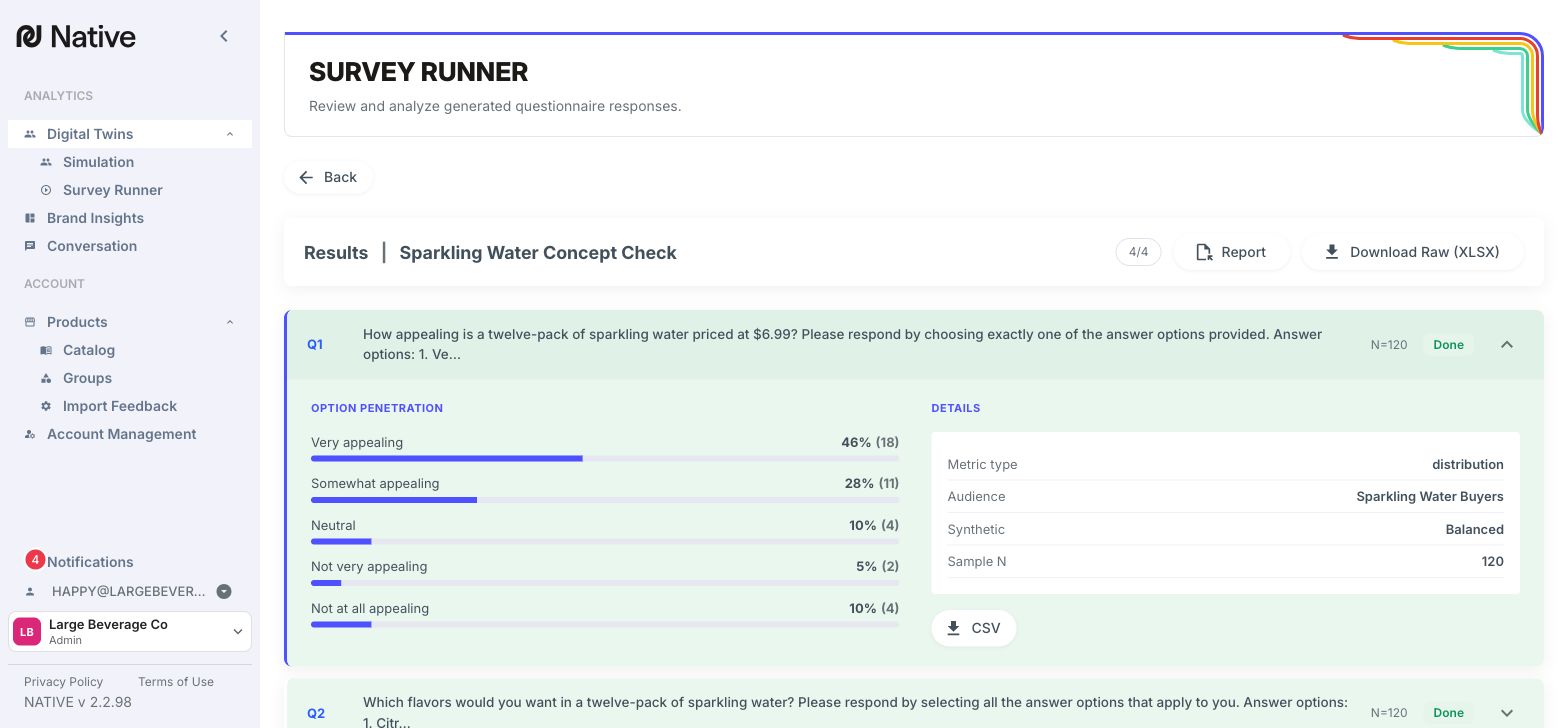
View Results shows each question with its response summary. For choice and rating questions you get option penetration: the share of respondents who chose each option. Rating questions also show the Top 2 box callout, using the direction you set in the question.
Export options:
- CSV for one question.
- Download Raw (XLSX) for the full run.
- Report for a formatted readout with its own tabs and summary cards.
The report and the run detail both state the audience, the sample size, and the synthetic setting, so a result can be traced back to its configuration.
Troubleshooting
| Symptom | Cause | Fix |
|---|---|---|
| Asset not ready on create or start | The audience has fewer than 100 twins or no contributing assets. | Pick a ready audience, or import more reviews with reviewer identifiers. Refresh the audience snapshot on the audience, then retry. |
| Parse warnings after upload | The document has unclear question boundaries or text that is not linked to a question. | Fix the question in the Optimize step, or edit the wording. See Troubleshooting. |
| A question shows no one will see it | Its routing rule can never match, or an earlier question it depends on was removed. | Open the Routing tab and repair or remove the rule. |
| A run is paused or a question failed | The run was paused manually, or a question exceeded its retry budget. | Resume the run, or use Retry all failed. Completed questions are kept. |
| An image did not match a question | The document layout did not pair the image with a question, or the image was already used. | Attach it manually in the Review step, or set it aside. |
| The report has a lower sample than requested | The audience holds fewer reviews than the requested sample, or routed questions reached fewer twins. | Check the Sample N maximum shown in Review and the routing rules. |