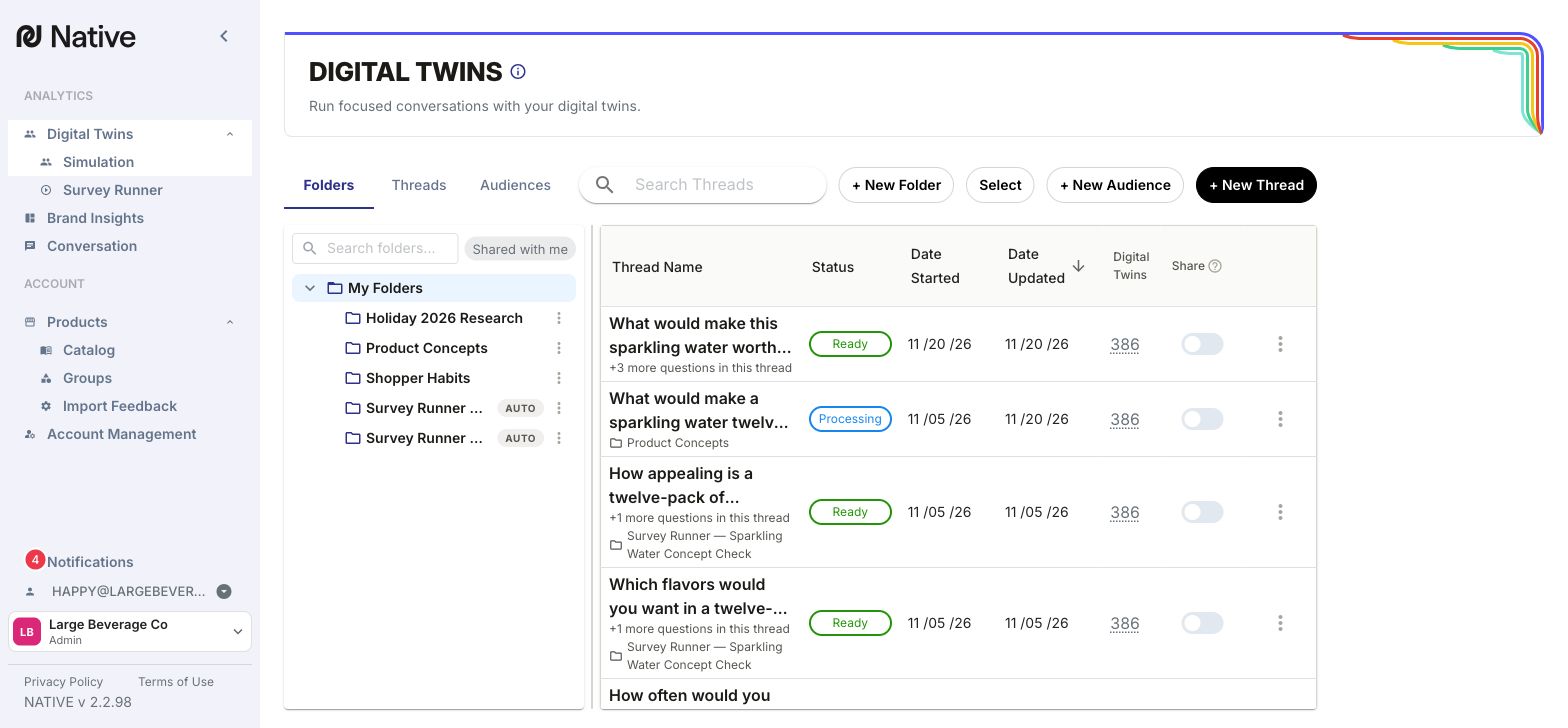
Digital Twins is Native AI's generative AI feature that lets you run focused conversations with digital representations of your customers and your competitors' customers. Unlike a general-purpose chatbot, Digital Twins are built from customers' real words, so they respond as if you were speaking to a live customer panel. Jump to section:
- Before You Ask
- Ask a Question
- Read a Simulation
- Refine and Rerun
- Follow-ups and Subthreads
- Organize and Share
- Question Tips
- Troubleshooting
Before You Ask
An audience is a saved view of your review data. Its quality decides how much a simulation can tell you, so check it before you spend a run.
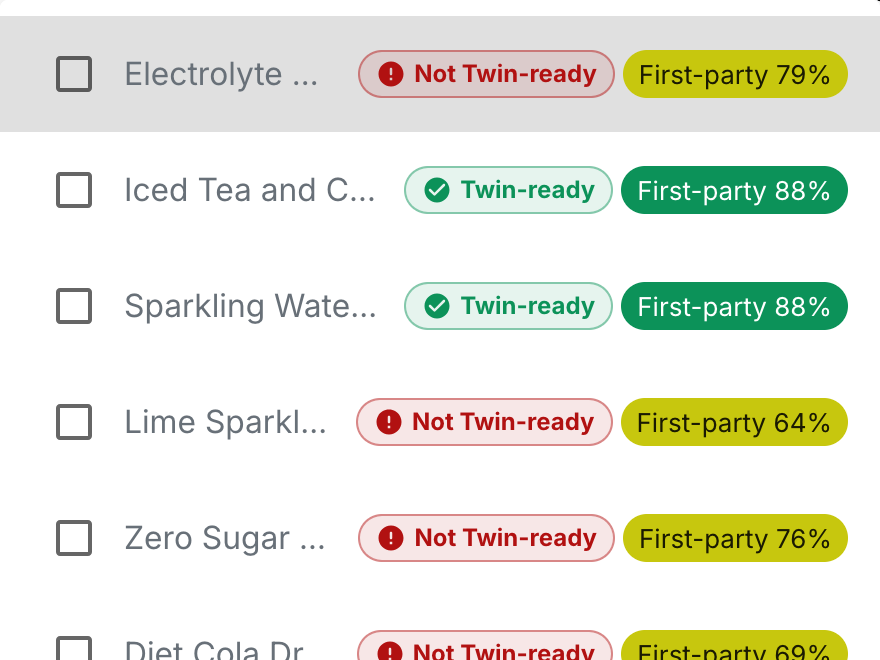
Open the audience list beside the prompt bar. Each audience shows its Total Digital Twins, its contributing sources, its coverage and freshness, its date span, and a data-quality verdict. The Twin-ready badge is the go/no-go signal. Twin work needs at least 100 people, 70% reviewer-link coverage, and 60% processing readiness. A small or thin audience still answers, but it speaks for fewer people and its answers are less stable.
Audiences are created from filters. Build one in Brand Insights with the Filters panel and Save Audience, or in the Digital Twins audience drawer with Save Audience. The same saved audiences appear in Survey Runner.
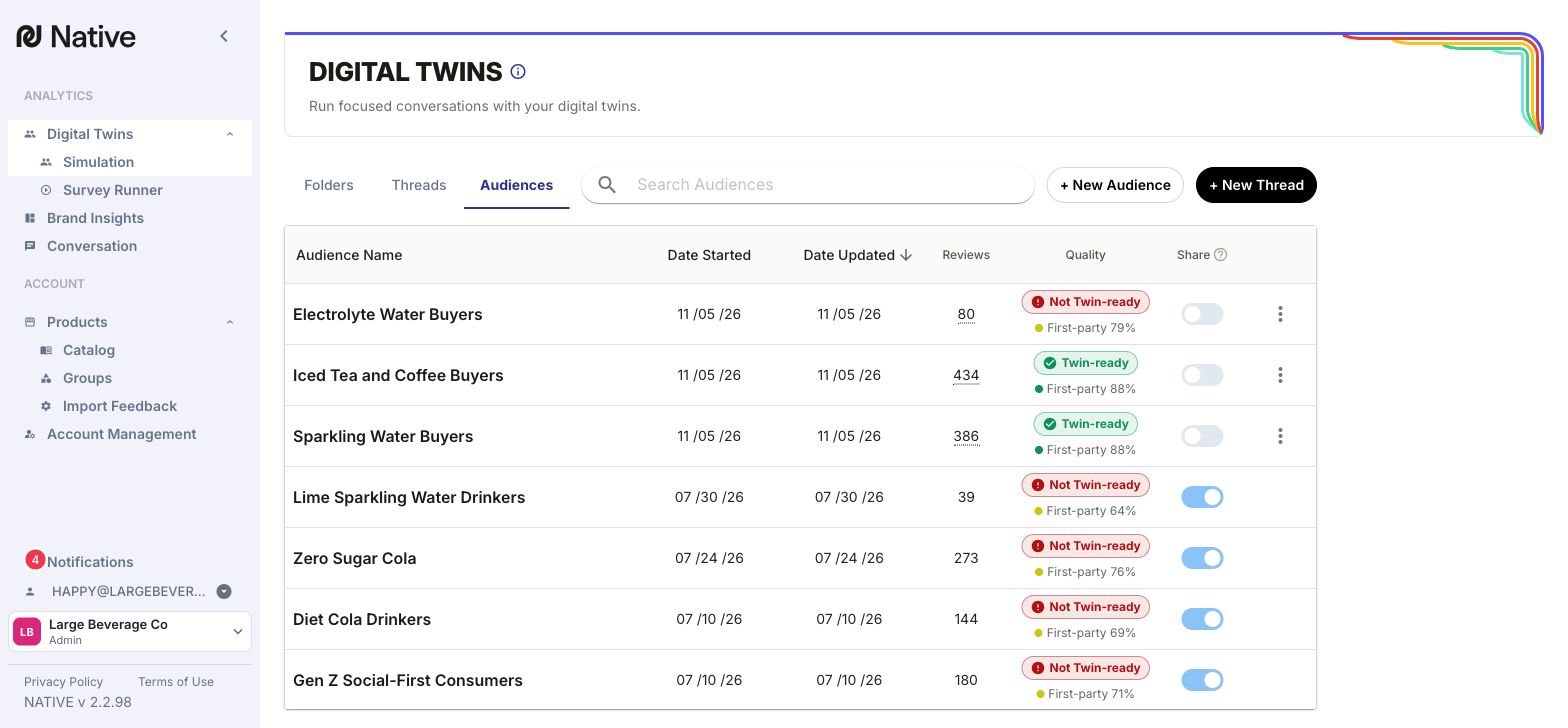
The Audiences tab lists every saved audience with its review count, Twin-ready verdict, and first-party share. Check the verdict before you ask.
Ask a Question
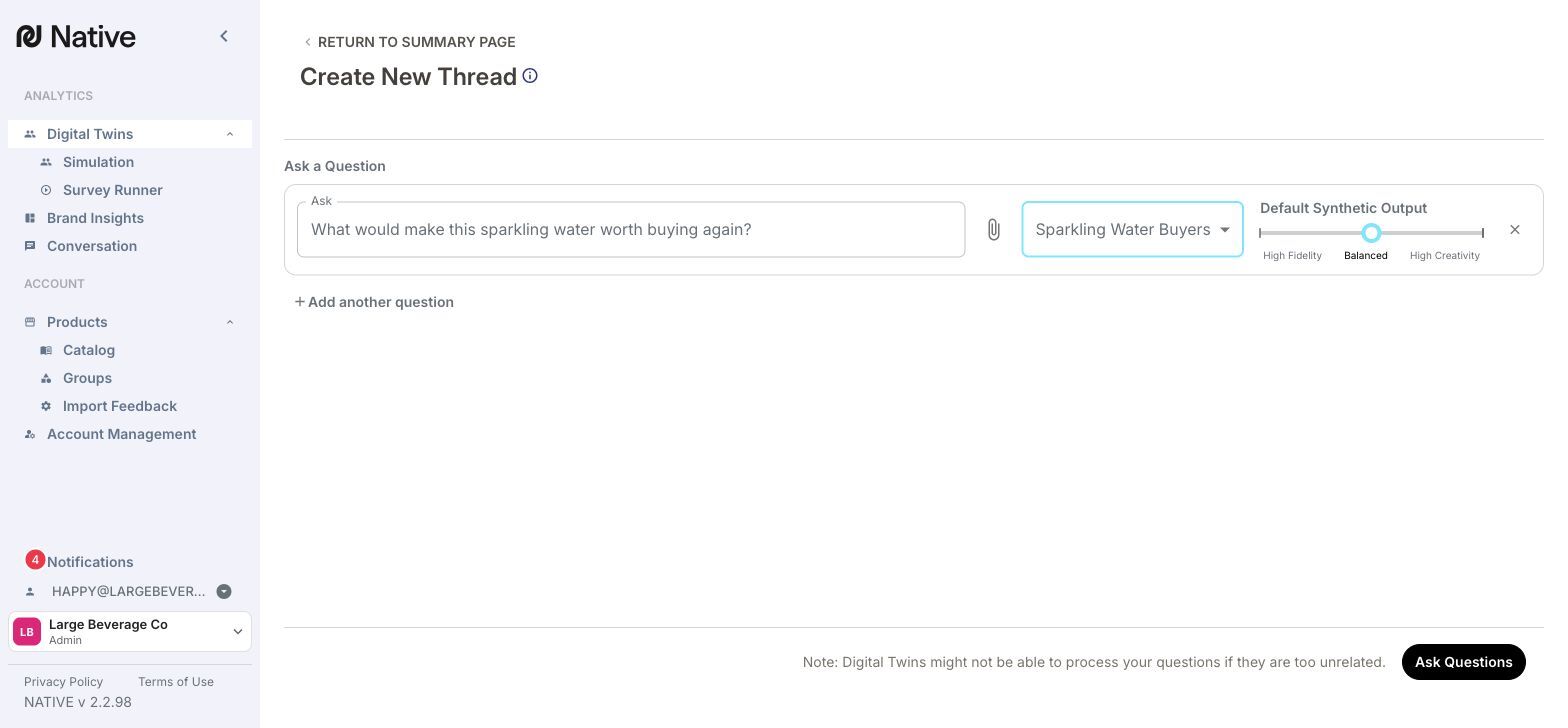
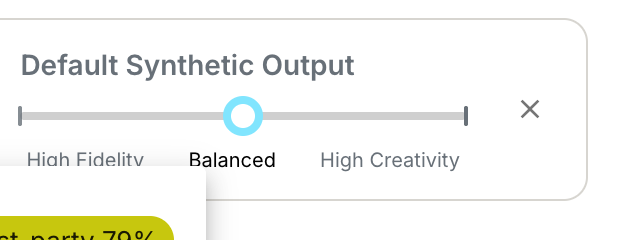
Type the question in the prompt bar, choose the audience, set Default Synthetic Output, and select Ask Questions. You can also start from a suggested example prompt, grouped as Feedback, Hypothetical, Motivation, or Comparison; Generate New Questions produces a fresh set from your data. + Add another question stacks more questions in the same thread. Each question is asked separately, which works far better than one compound question.
Select more than one audience and the composer offers Merge Audiences, which combines the selected audiences into one panel for that question. Without merge, the question fans out into one question per audience.
The synthetic setting controls how strictly answers stay grounded in the source data:
- High Fidelity: answers only when the source data contains a precise match. Output is sparser and needs a larger audience.
- Balanced: fills in plausible detail only when the prediction is strong.
- High Creativity: may invent detail beyond the source. Use it for scenarios and treat the output as inspiration to validate.
The paperclip attaches up to five images to a question, so twins can react to packaging, label variants, ad creative, or other visual concepts. Images can be PNG or JPG. An image that cannot be processed stops the question rather than running it with a partial set.
Read a Simulation
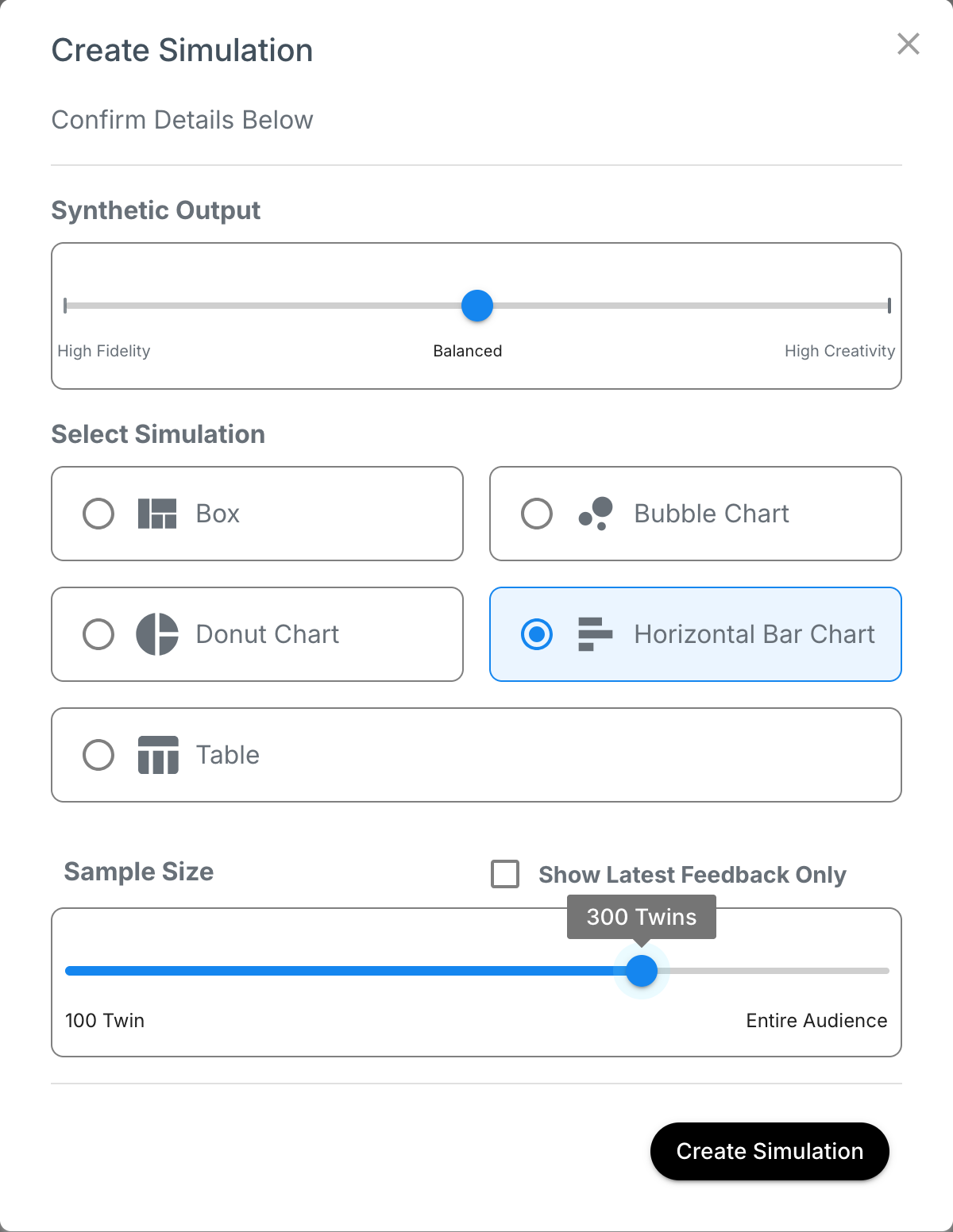
The first reply is a retrieval answer drawn from the audience's reviews. To turn it into a simulation, select Simulate on the answer. The settings dialog sets:
- Sample Size: how many twins answer. The minimum is 100. The maximum is the audience's available reviews, capped at 20,000. The dialog defaults to the whole audience for small audiences and to 1,000 for larger ones, moves in steps of 10, and shows an estimated run time.
- Show Latest Feedback Only: samples from the audience's most recent feedback instead of its full history. The sample is random either way, and duplicate reviews are removed before sampling.
- Synthetic Output: the level for this run, pre-filled from the thread default.
- Select Simulation: Bubble Chart, Donut Chart, Horizontal Bar Chart, Box, or Table.
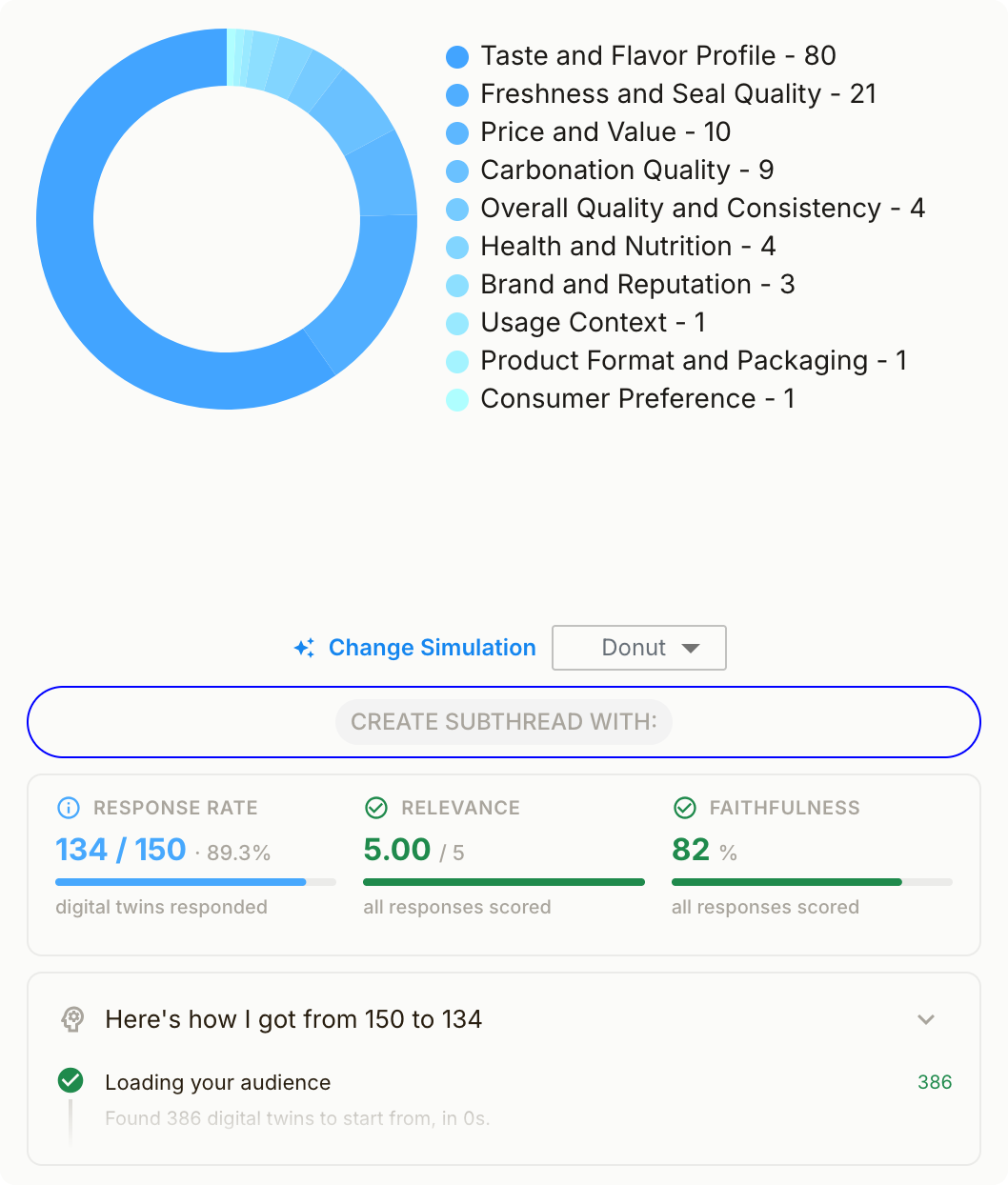
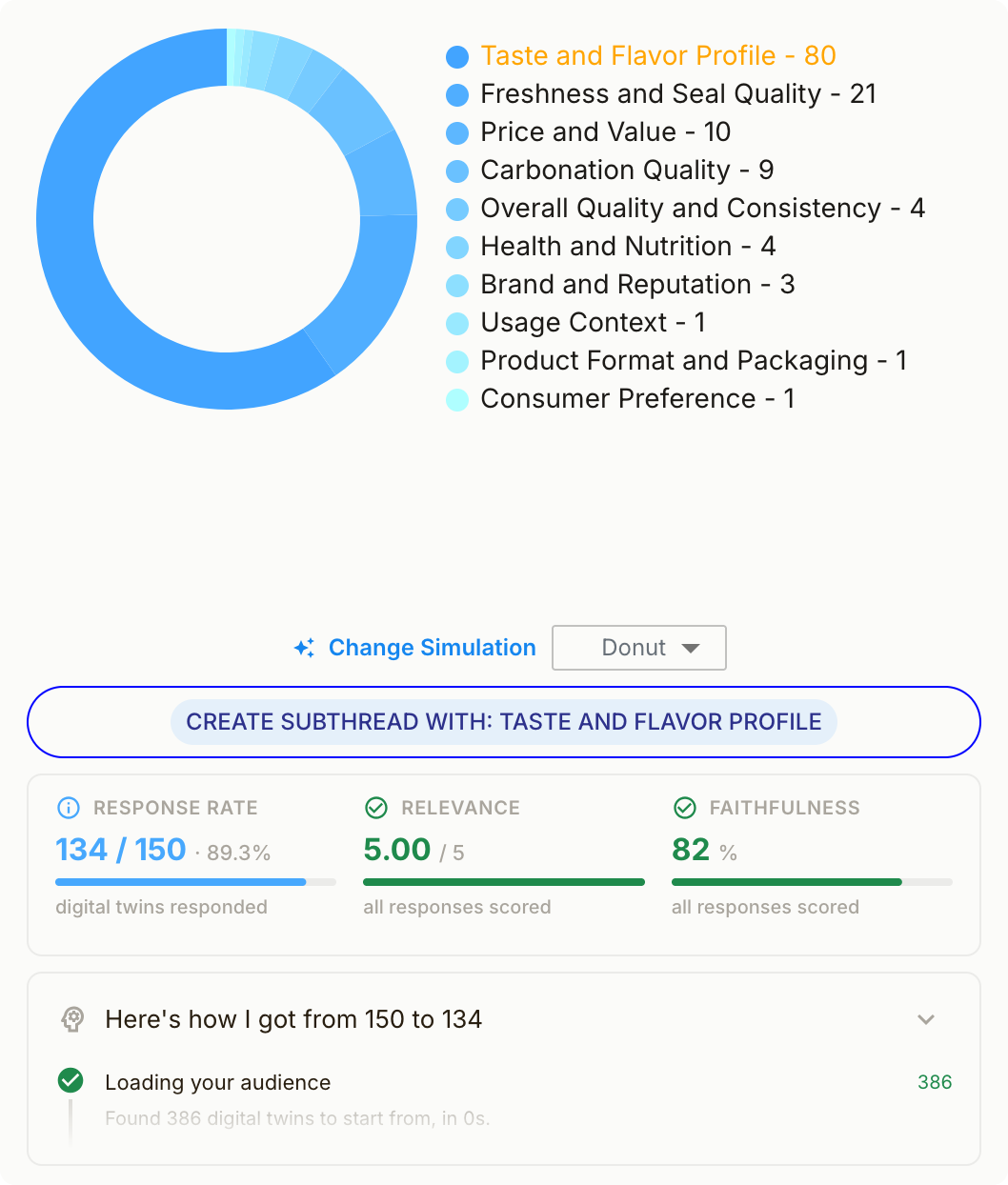
Select Create Simulation. The finished answer shows the chart, the share of respondents behind each option, and three scores:
| Score | Meaning |
|---|---|
| Response Rate | How many sampled twins answered, shown as responded / sampled and as a percentage. A low rate means the question or the audience did not connect. |
| Relevance | How well the answers match the question's intent, scored 0 to 5. Higher is better. |
| Faithfulness | How grounded the answers are in twin data, with no invented detail, shown as a percentage. Higher is better. |
The score tooltips use green, amber, and red status icons. A red score is a signal to narrow the question, change the audience, or raise the sample, not a reason to discard the run. The Trust Center's Responsible Simulation page explains the method behind the scores.
Refine and Rerun
Every simulation is a run in the thread's history. Use the arrows beside the run count to move between runs, and Retry simulation to run the same question again with the current settings. Changing the sample, the chart type, or the synthetic level and running again adds a new run; earlier runs stay available.
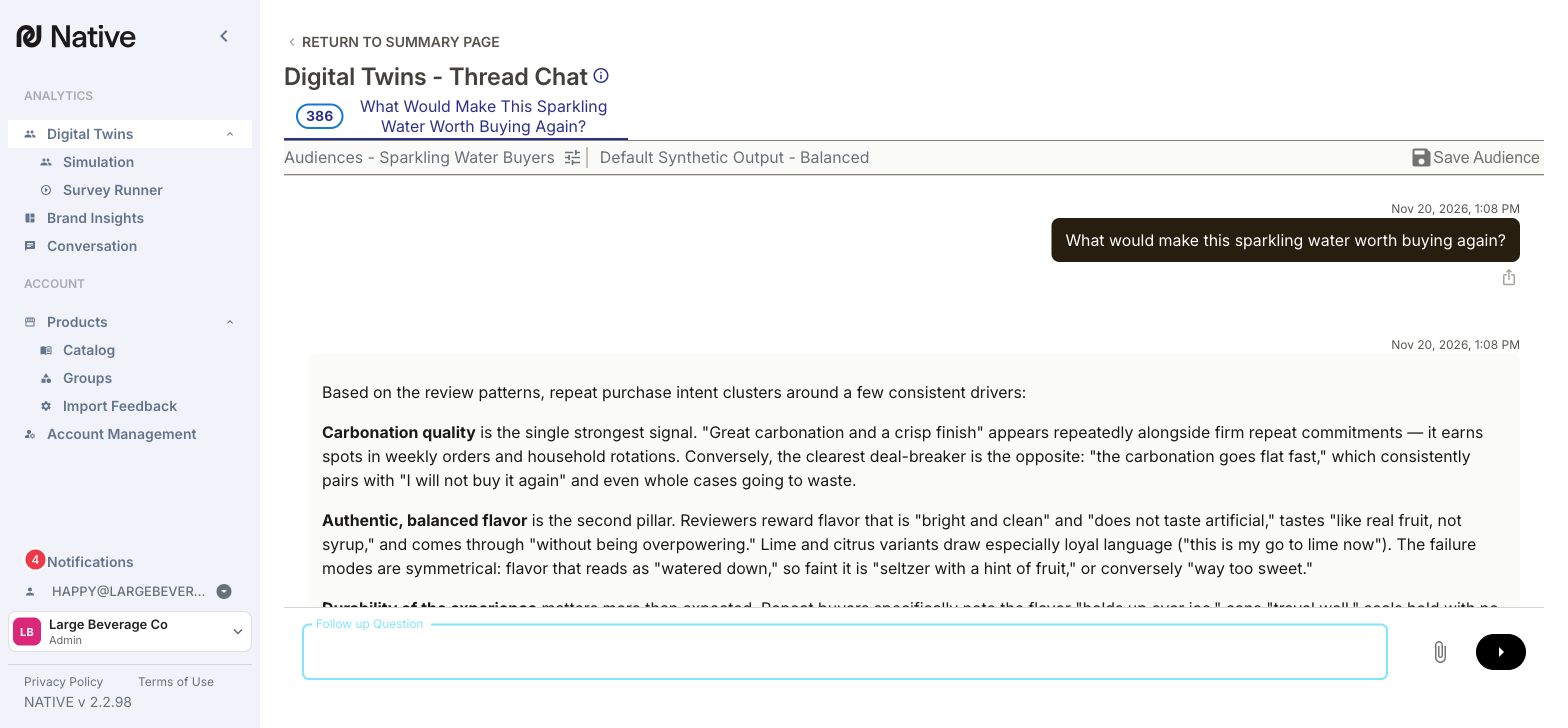
A thread's header keeps the audience, sample, synthetic level, and timestamps, so any answer can be traced to its configuration.
Follow-ups and Subthreads
Inside a thread, the follow-up bar keeps the conversation going with the same audience. Ask why, drill into a surprising answer, or explore a related angle. Use + Add another question to ask several follow-ups in one pass.
To drill into a chart, select the segments you care about and choose
Create Subthread With:
Each thread has a conversation memory budget. The ring beside the composer shows how much of it the thread has used. At 40% it appears; from 70% it warns that accuracy can start to drop; past 90% it turns red. When the thread reaches its limit, start a new conversation. The ring tooltip states the current state in words.
Organize and Share
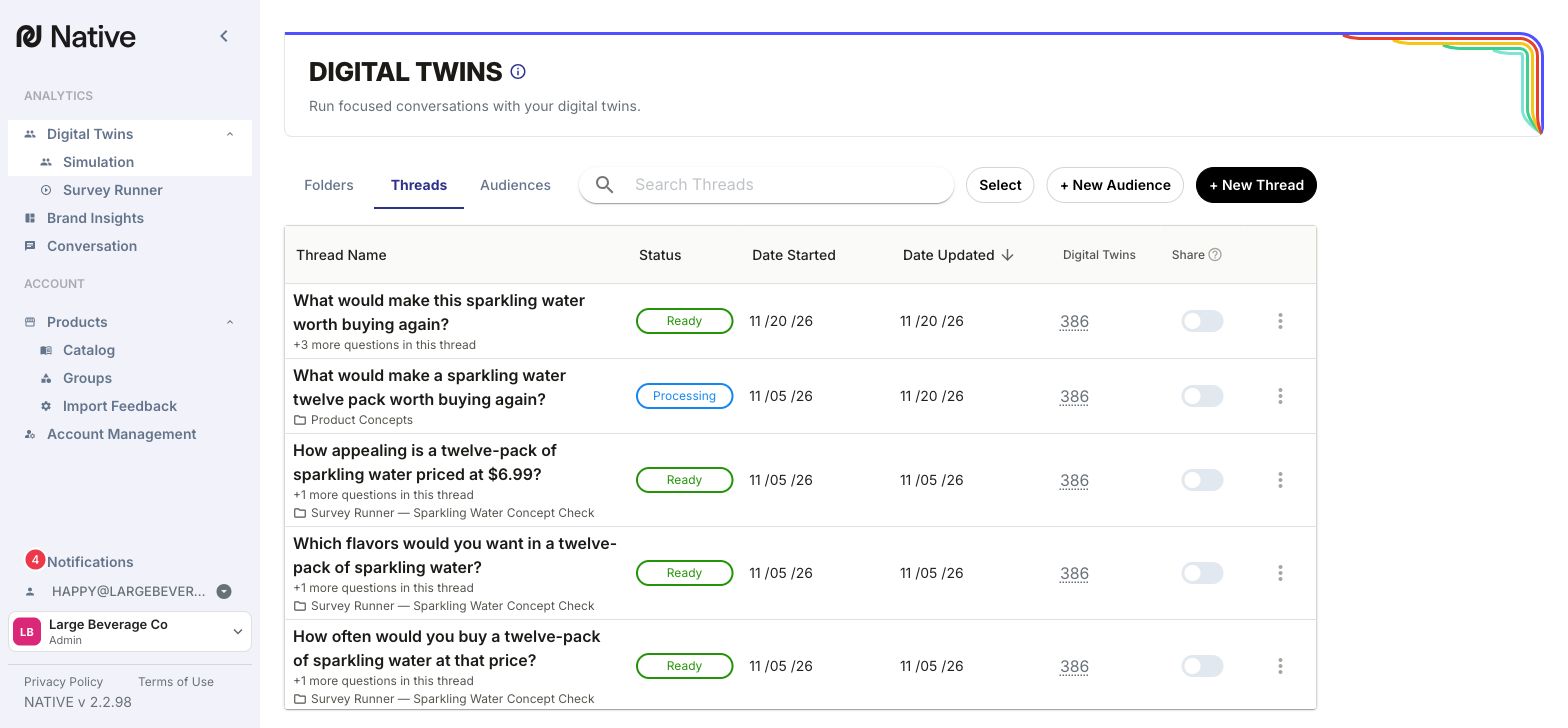
The Digital Twins home page has three views:
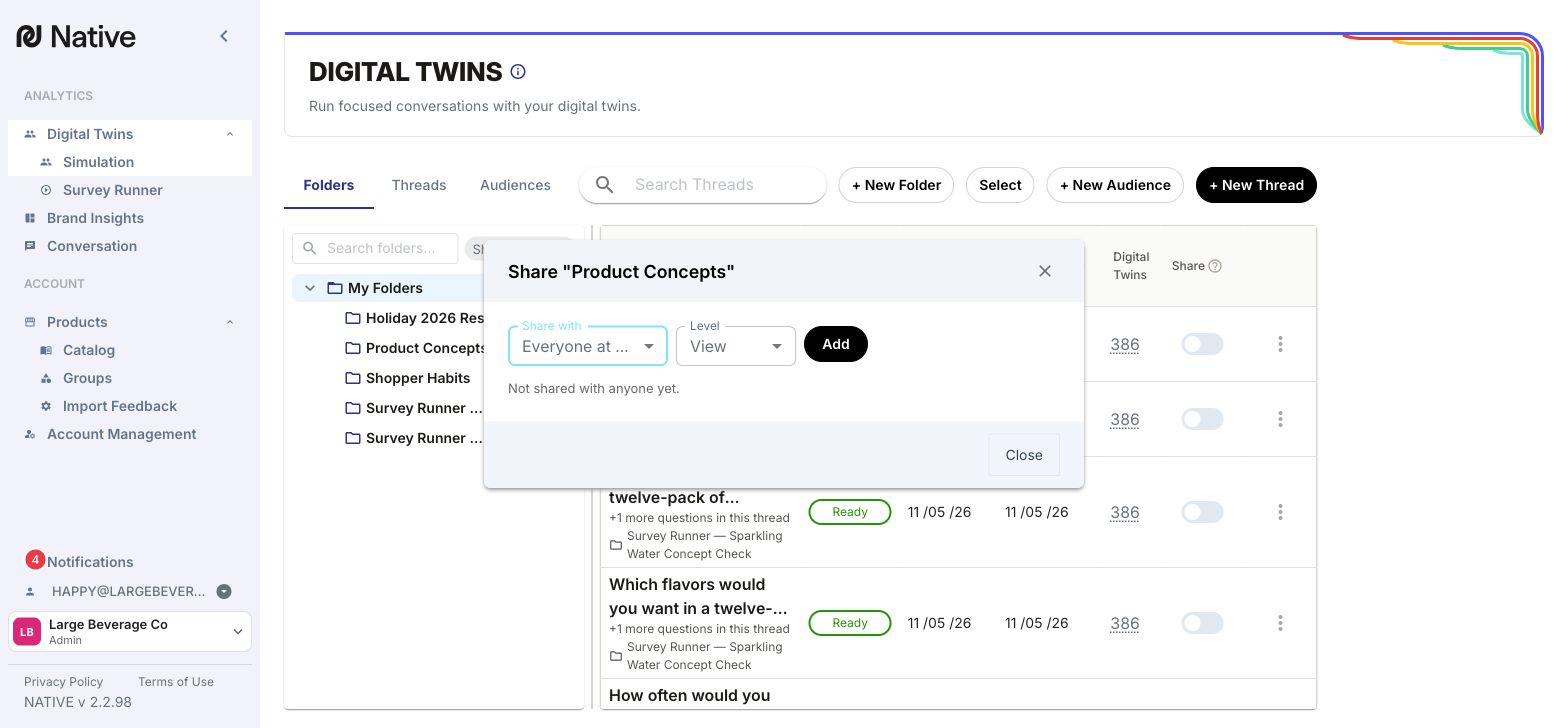
- Folders: the folder tree, including Shared with me. Create, rename, move, and delete folders. A folder can be pinned for quick access.
- Threads: every conversation with its status, date, and audience size. Threads can be renamed, duplicated, moved between folders, pinned, and deleted in bulk.
- Audiences: the saved audience list used by the composer and by Survey Runner.
Sharing works at two levels:
- A thread can be shared with a person, a team, or a workspace from its share dialog, with view, edit, or manage access. Manage adds deletion. A shared thread appears in the recipient's Shared with me.
- A folder can be granted to a person, a team, or a workspace with the same three levels. Every thread in the folder inherits the grant.
Threads and folders can be exported to HTML for a static readout. The export keeps the question, the chart, and the scores.
Question Tips
How you phrase the question matters: the more specific it is, the fewer twins can answer it.
- Ask questions the data set can realistically answer. Correct: What do you think about the flavor of this product? Incorrect: Do you use your mobile phone while shopping?
- Use proper grammar. Correct: What do you think about the flavor of this product? Incorrect: What do you think about flavor of this product?
- Keep questions short. Apply a filter instead of naming the product in the question.
- One question per query. Use + Add another question instead of a compound question.
- Do not over-specify. Correct: What health factor do you pay attention to when buying it? Incorrect: What health factor do you pay attention to when buying our gluten-free macaroni with mozzarella?
Troubleshooting
| Symptom | Cause | Fix |
|---|---|---|
| No answer, or very few responses | The question asks for detail the reviews do not contain, or the audience is thin. | Broaden the question, raise the sample, or switch to a larger audience. |
| Low Response Rate | The question does not connect with the audience or the sample is small. | Rephrase, raise the sample, or check the audience's readiness. |
| Low Faithfulness | The synthetic level allows too much invention, or the source data lacks the detail. | Lower the synthetic level, narrow the question, or add data. |
| Memory ring red or the thread refuses a question | The thread reached its conversation limit. | Start a new conversation. Prior threads stay in their folder. |
| Image rejected | The file is not PNG or JPG, or it exceeded the size limit. | Re-export the image and attach it again. |
| Audience not ready | Fewer than 100 twins or no contributing assets. | Import more reviews with reviewer identifiers, then refresh the audience. |
For the full list, see Troubleshooting.