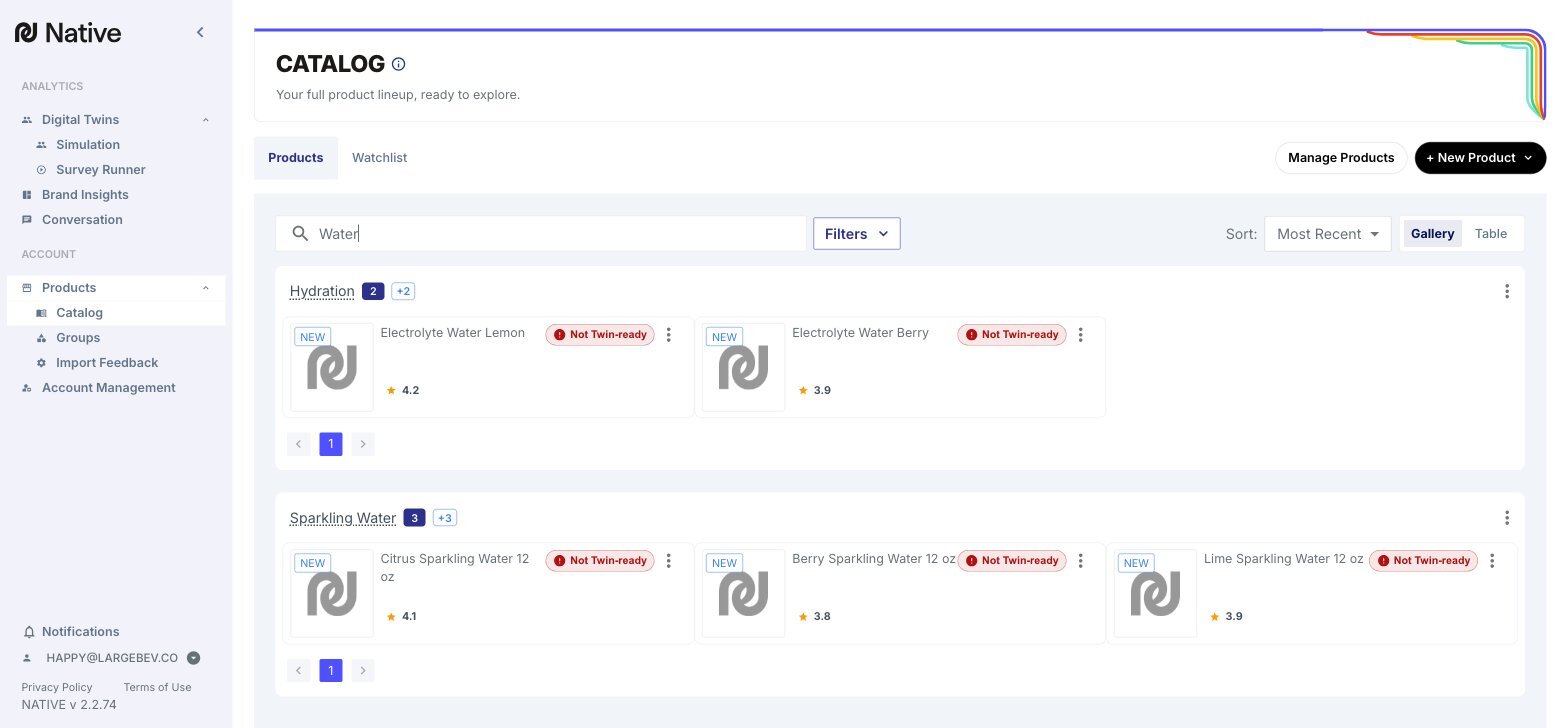
The Catalog tab is your full product lineup: your owned products under Products, and competitor products under Watchlist. Once a product URL is added, Native AI pulls future and historical customer reviews, updated daily. Most retailers have no access limits; the notable exception is Amazon, which only allows access to the most recent 100 reviews per product. Jump to section:
Adding New Products
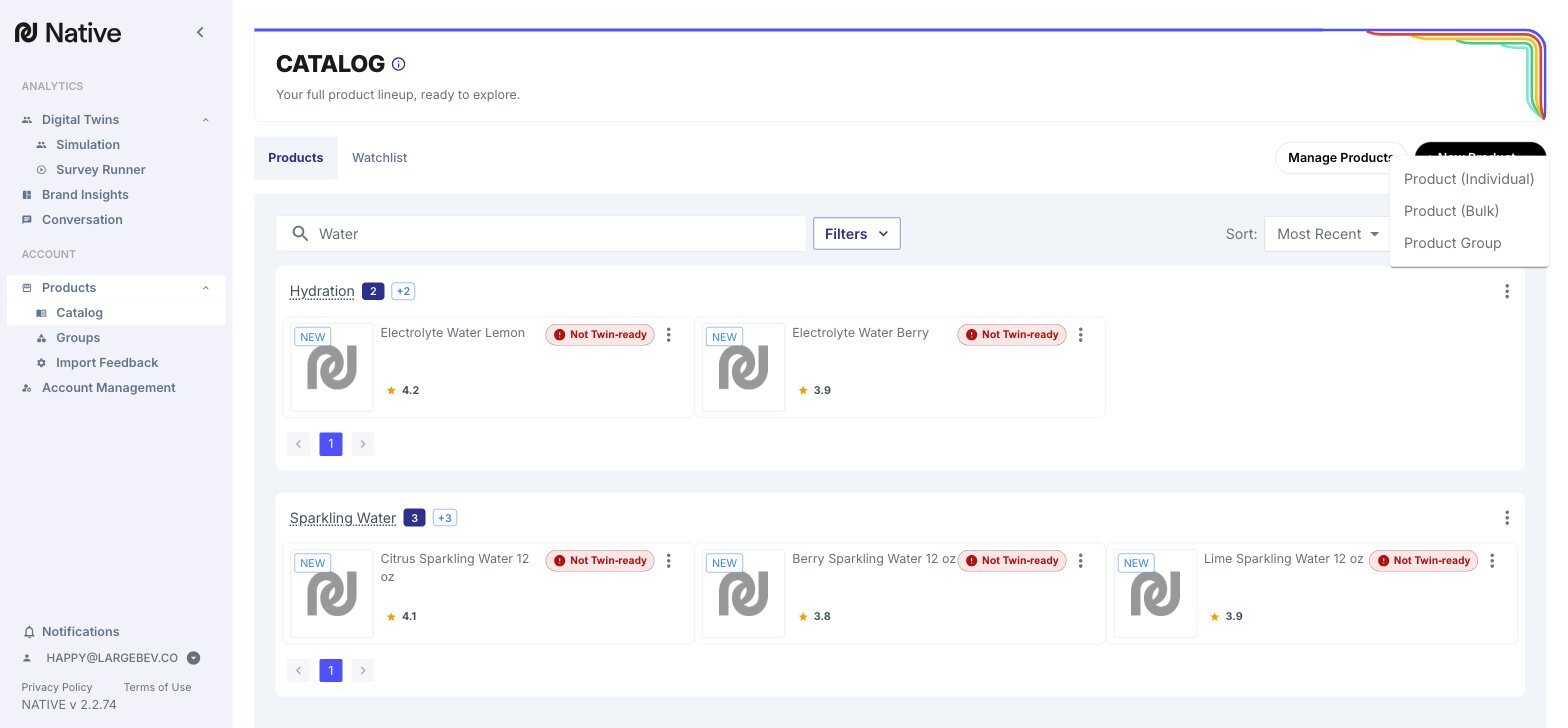
The + New Product button offers three options:
- Product (Individual) - add one product with one or more URLs
- Product (Bulk) - add many products at once using the CSV template
- Product Group - create a group to organize products
Products can contain multiple URLs, so you can combine reviews for the same product across several retailers. (To view reviews from just one retailer, use filters.) You can also upload a product image (PNG, at least 200×200) to make the catalog easier to scan.
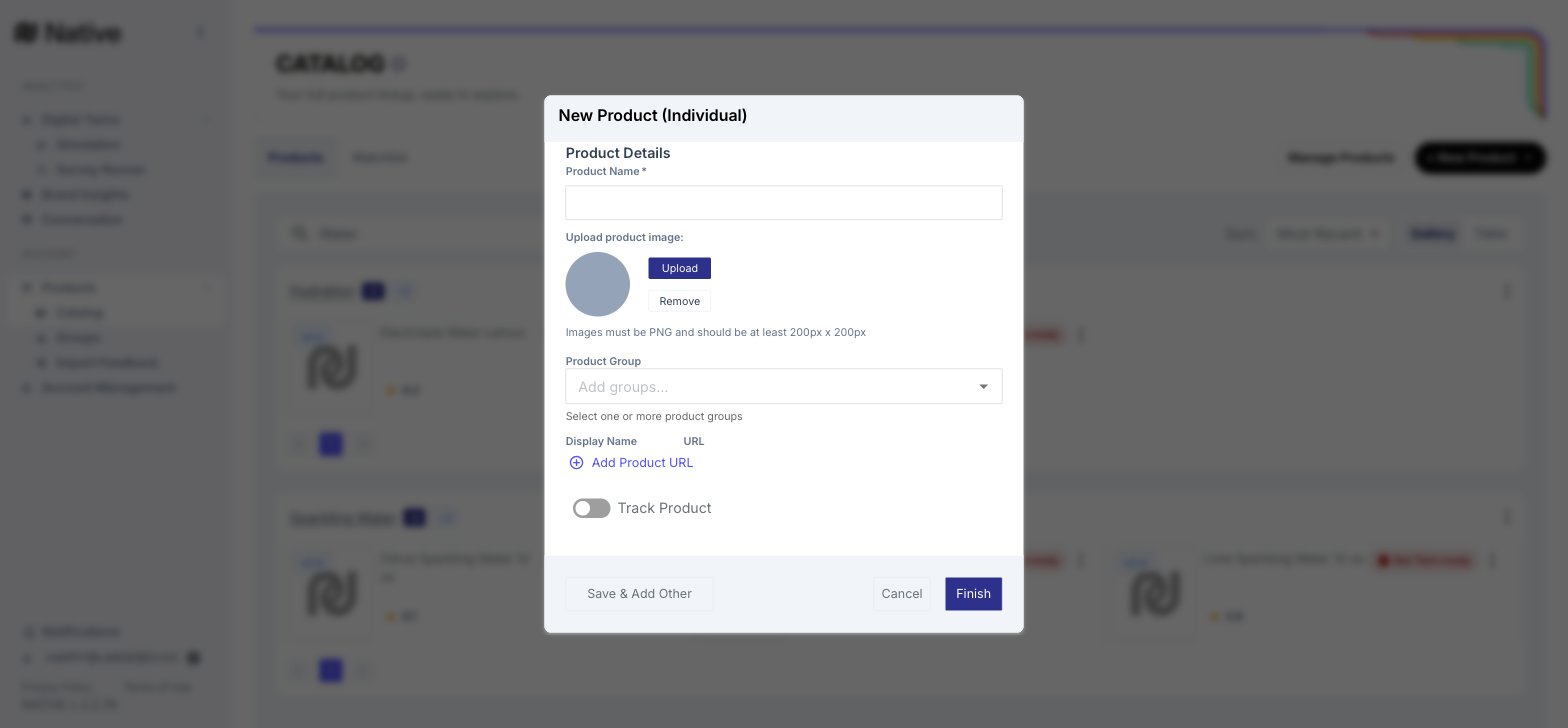
You do not need to toggle on "Track Product" for Native AI to start collecting reviews: that toggle only controls notification settings. After a product is added, it may take several days to collect all historical reviews, especially for products with a long history and a large volume of feedback. Note: Amazon only allows access to the most recent 100 reviews per product URL.
Each product card also carries a readiness badge. Twin-ready needs at least 100 people, 70% reviewer-link coverage, and 60% processing readiness. A product card judges that product alone, so it can read Not Twin-ready while the saved audience built from several products is ready. Until a product clears the bar, the badge reads Not Twin-ready; the product still counts toward every audience that includes it. See Troubleshooting if a product stays below the bar.
Product Groups
Product Groups combine products for easier analysis: the same effect as selecting multiple products with filters, saved for reuse. A product can belong to several groups at once, and groups are managed on their own Groups tab.
The main reasons to use them:
- combining multiple products in a product line (e.g. 'face cream' products vs. 'body lotion' products)
- within the Watchlist tab, grouping competitor products by brand
Product Groups make filtering easier but don't change any platform functionality. The Groups tab adds create, assign, move, and remove controls, plus an Unassigned queue. See Product Groups for the full workflow.
Watchlist
The Watchlist tab is where you add competitor products. Keeping these separate from your owned products means Your Brand Overview only reflects your own products, while Quality IQ can show competitive insights and benchmarks side by side.
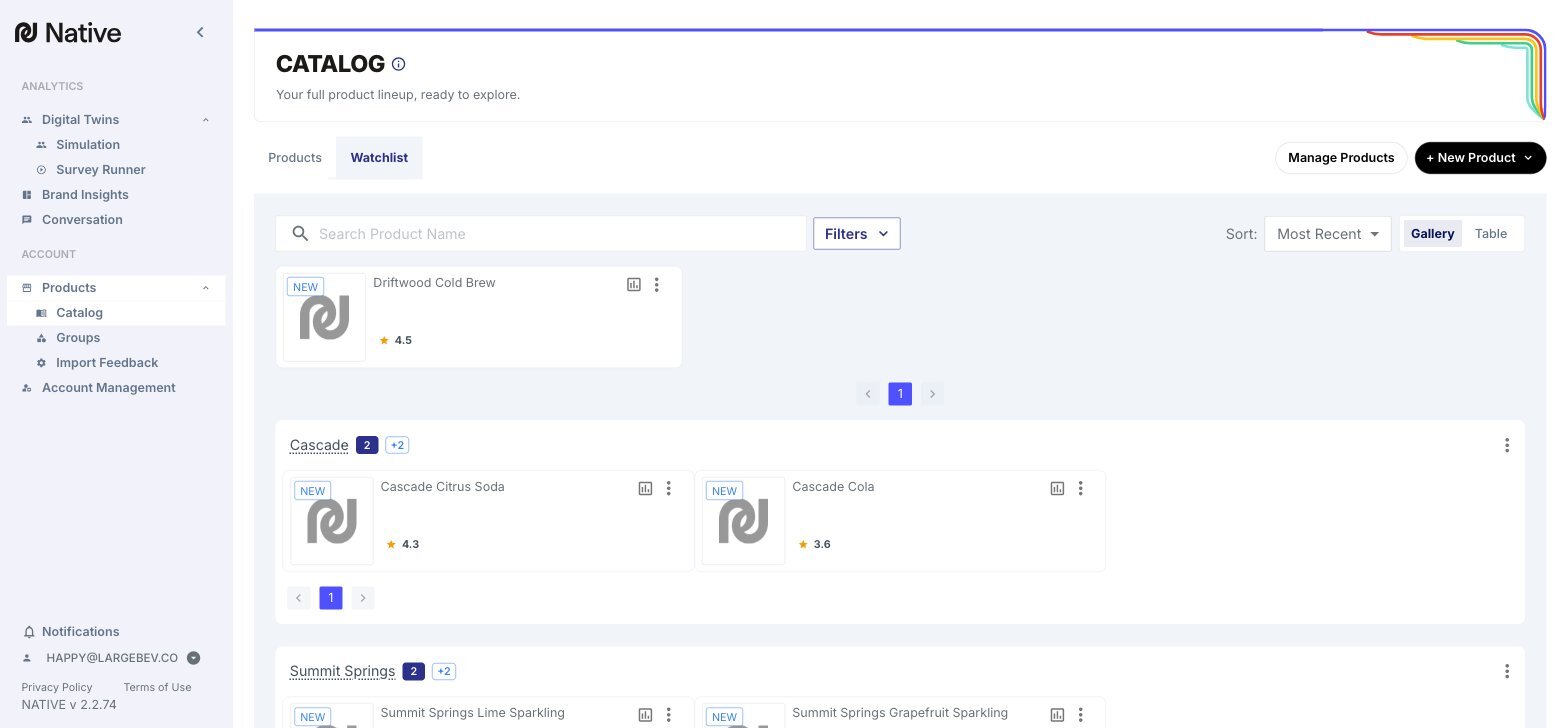
One more difference: in Brand Insights' Extracted Keywords Highlights, only your own products' keywords can be saved to the Tracked tab. Keywords from Watchlist Product Groups appear in their own tabs instead, one per group.